Introduction
According to the Family Historian Help file “A query is a reusable set of instructions for extracting information from a Family Historian projectA Project is a Windows folder, created by Family Historian, which contains all your Family Tree information recorded in Family Historian. Normally located in the Documents\Family Historian Projects folder.. The information returned by a query is called a result set, and it is laid out in tabular form, in a grid of rows and columns.” If the query is an Individual query, each row corresponds to an Individual record; if it is a Source query, each row corresponds to a Source record; and so on for every record type. There are also three types of query that do not return records: Fact queriesQuerying is a very powerful feature that allows you to specify and save criteria for identifying a set of records of a given record type. (one row per event or attribute), CitationA link between a source and a fact, documenting Where within the source you find information being "cited" to support the fact/conclusion. queries (one row per source citation) and WitnessA Witness is somebody who played an important role in an event (or rarely, attribute) but were not a Principal, e.g. they could have been a bridesmaid at a wedding, rather than one of the individuals getting married. queries (one row per person in a non-principal role in a shared event).
Queries are a very powerful feature of ƒh because they allow you to analyse your data in almost any way you can think of. What did my direct ancestors die from? How large were the families of the people in my tree? What factsFacts are one of the key concepts at the heart of Family Historian; they are how you record the things that happened to, or described, each ancestor (Individual). have I entered without citing a source? All these and many more questions can be answered using Queries.
This article is for ƒh Version 8, which rebuilt the Query Window. If you use Version 7 or earlier, see An Overview of Queries in Version 7 and below. Queries written for earlier versions (.fhq files) are converted automatically when you install Version 8 or import them; the Version 8 format is .fhqx.
Standard and Custom Queries
Queries fall into two categories: Standard Queries, which are distributed with ƒh and cannot be edited (except to change the behaviour when printed), and Custom Queries which are created by users (either for personal use or to share via the Queries section of our Downloads page).
Queries are run from the Query button on the main toolbar, whose dropdown lists them by category; the first item opens the Query Window without running anything, and New Custom Query and Manage Queries are on the same menu. Inside the Query Window, the cog menu on the query toolbar has the same commands plus Save As Custom Query, which is the usual way to start from a standard query you want to change.
See The Query Window for instructions on how to use the Query Window and all its tabs. You are advised to read the Help file before moving on to the Hints and Tips below.
What Changed in Version 8
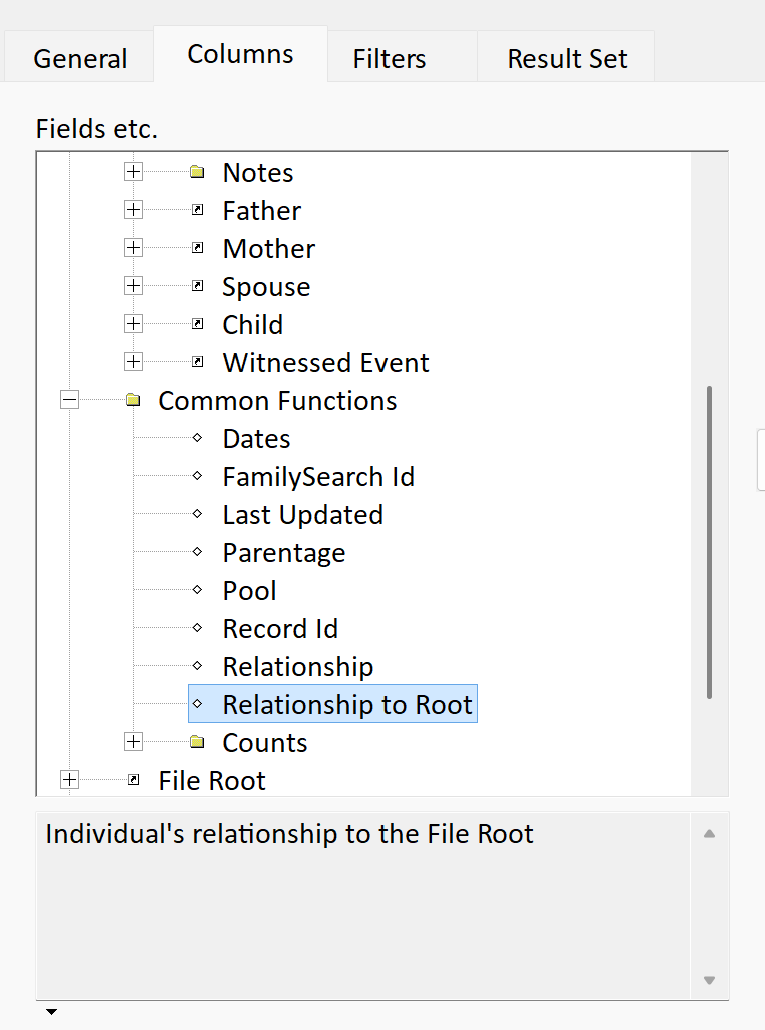
If you know the Version 7 Query Window, these are the differences you will notice:
- The Rows tab is now the Filters tab, and the four conditions (Add If, Add Unless, Exclude If, Exclude Unless) have gone. Filters are now combined with AND and OR, grouped into subgroups nested as deep as you like, and shown as a tree: AND groups in blue, OR groups in green. Old queries are converted automatically. See Filters below.
- “Parameter” is now “Prompt” throughout.
- The Fields list on the Columns tab is now Fields Etc, because it also contains a Common FunctionsA 'function' is an expression which returns values based on computations. Typically, functions require data to be supplied to them as 'parameters'. A function in Family Historian is similar to a 'function' as used in spreadsheet applications (such as MS branch (with Counts beneath it) of ready-made function expressions you can add without writing them.
- Expressions are hidden by default in both the Columns and Filters lists; the cog menu below each list has Show Expressions. Filters can carry a description instead.
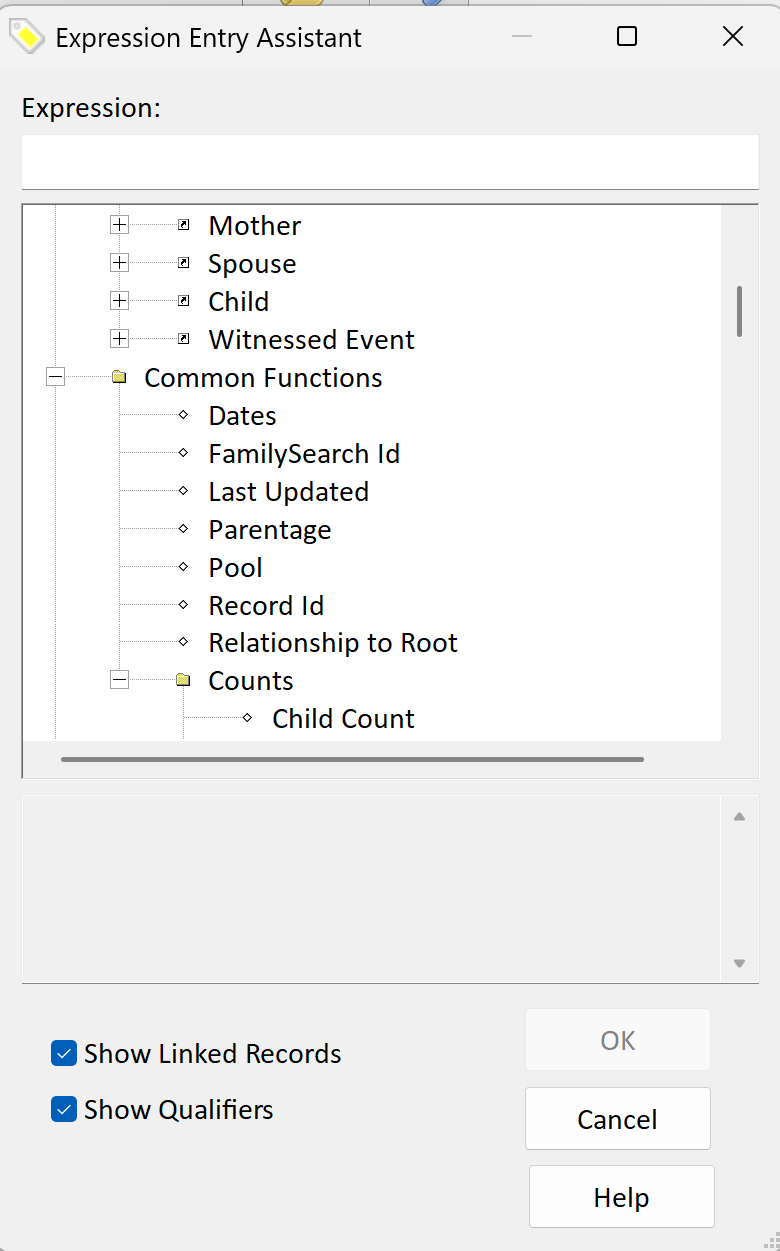
- The Data Reference Assistant is now the ExpressionExpressions are composed from two technical features: Data References and Functions; they also often involve Operators to compare values. Entry Assistant, reached from the Insert button beside any expression field, and helps with functions as well as data referencesData references are expressions which are used to provide a way of referring to particular items of data in your project, such as records or particular fields within records. They can be used for advanced customizations of diagrams, websites, family.
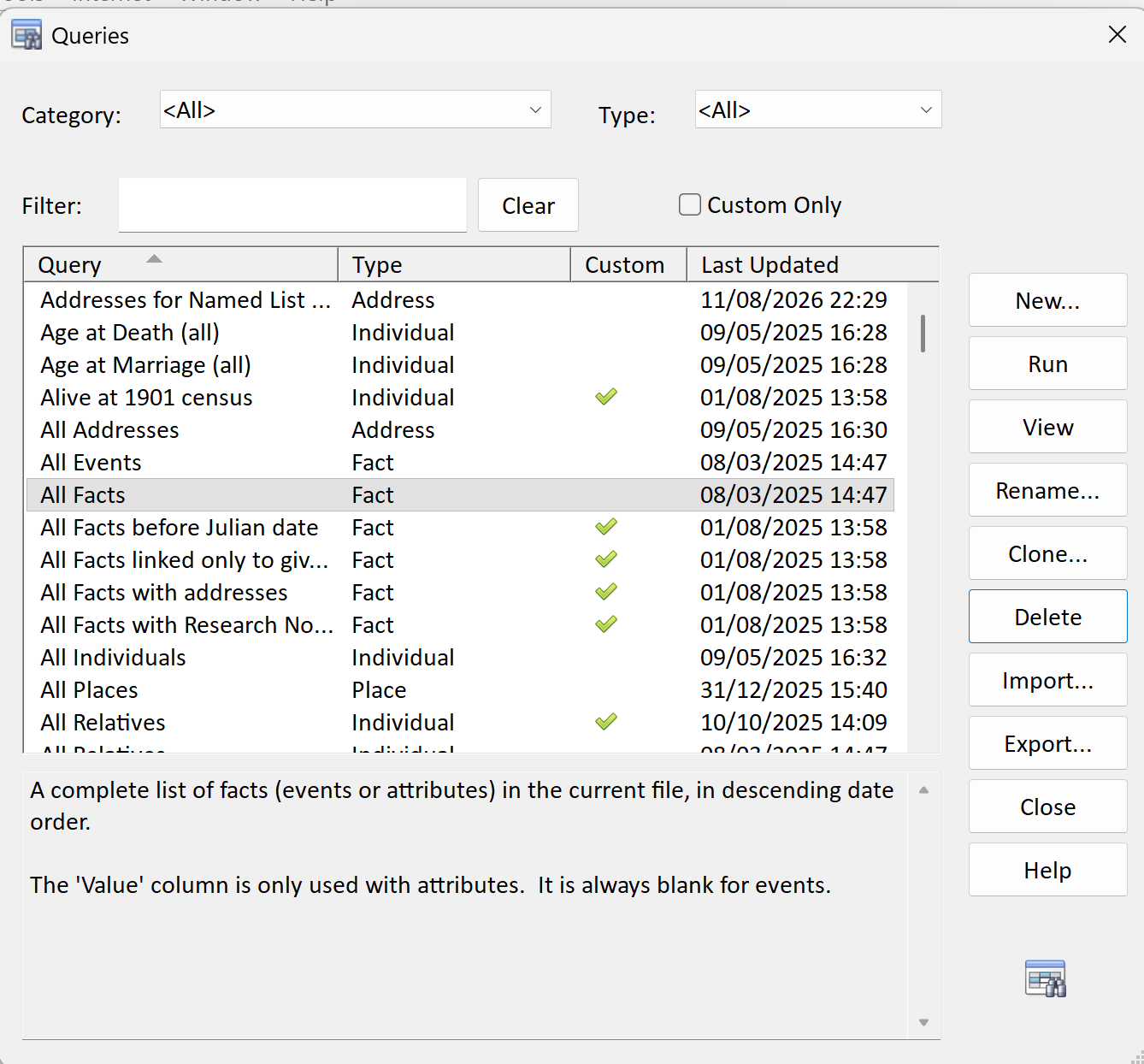
- A Manage Queries tool lists every query with its type, description and last-updated date, filterable by category, type or text, and is where you rename, clone, delete, import and export.
- Three new query types: Address"The address structure should be formed as it would appear on a mailing label…", according to GEDCOM; however, this is capable of a number of interpretations, and Address and Place are best considered together., Citation and Witness. Several new standard queries.
- A new column type, Group By, used by Smart Folders (see An Overview of Smart Folders). The Query Window is also where Smart Folders are designed; the button on its own toolbar shows or hides the Smart Folder pane.
- Drag and drop works in both the Columns and Filters lists (hold Ctrl to copy), and you can drag a field straight from the Fields Etc list into the Columns list.
- Right-click a record in the Result Set for Record Links, which lists everything that links to it.
- Queries are stored as
.fhqxfiles.
Filters
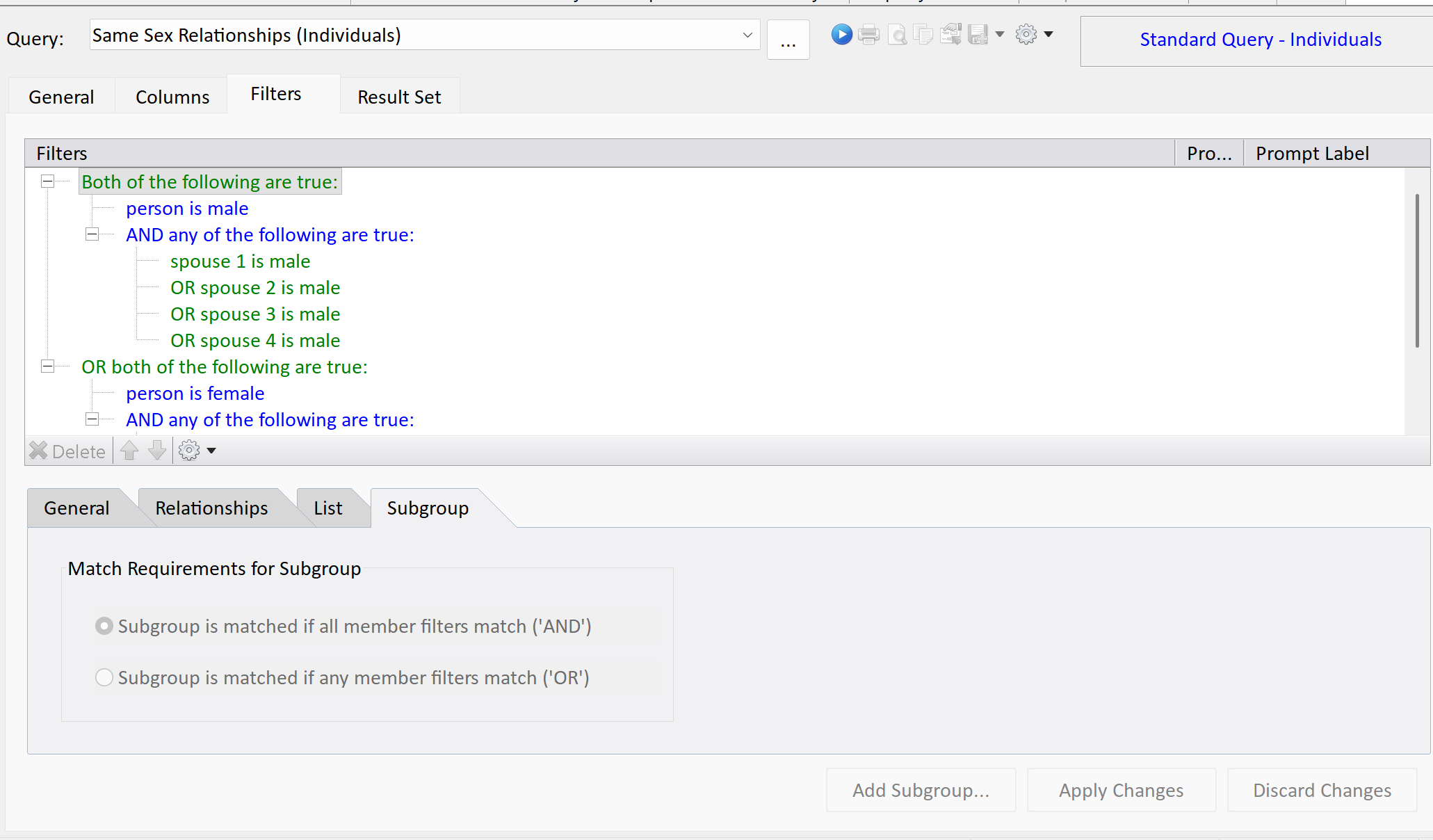
Every query has a domain, which is the whole set of records or items of its type, and filters decide which of them appear in the result set. If there are no filters, everything appears. There are four kinds, each with its own tab at the bottom of the Filters tab: General (an expression compared with a value; this is where prompts live, so that the person running the query is asked for a value), Relationships (Individual queries only), List (membership of a Named ListNamed Lists are a way in FH to group related items — which can be records of any type(s) — so that you can easily find them to work with.; record queries only) and Subgroup.
When you add a filter you are asked how it should combine with the ones already there, AND or OR, and ƒh makes a subgroup if it needs one. Right-click a filter or the background of the list for the cog menu: clone, disable, move into or out of a group, and set whether the top-level group or any subgroup is matched when all its members match (AND) or any of them do (OR). Disabling a filter (or a whole subgroup) is the quickest way to find out which one is producing an unexpected result.
Two things carried over from the old Rows tab are worth knowing. Relationship filters are still applied in order within their group, so “any of the above” means the filters above it in the same group. And the standard queries’ filters all have descriptions; when you write your own, giving each a description makes the tree readable without expressions.
Working with Query Results
Any entry that is a Record can be double-clicked to open its Property BoxThe Property Box is the primary window for data entry and for viewing details of stored records. It is used with records of all types. to review or edit fields, or right-clicked for Properties and Record Links.
Any entry that is a Data Field can be right-clicked to choose Locate in Property Box or Locate in All Tab. NotesFamily Historian version 6 and below supports two types of Notes: Local notes (associated with a single person, record, or fact); and Note Records (sometimes called Shared Notes), that can be linked to multiple records and/or facts. Version 7 introduced and other long text can be opened with View in Note Window.
Any entry that is a Data Field can have its contents deleted by pressing the DELETE key. Also, by selecting multiple entries such as an entire column, bulk deletes can be applied. Ctrl+A selects the whole result set.
The cog menu also has Run and Invert Result Set (everything the query does not match), and commands to add the row records to a Named List or set a flag on them.
Printing the Results Set from a Query
It is possible to Print the Results Set from a Query, and the General tab of the Query Window has the Title, Subtitle, orientation and multi-page options for the printed output. Title and subtitle accept special codes for the date and time; see Query Window: General Tab.
The Title and custom Subtitle also have an undocumented feature: a value entered at a prompt could be included by writing it as ["Prompt"], where Prompt is the prompt’s label, wrapped in a type function of the matching kind, e.g. Date =Number(["Day"]) of =Text(["Month"]) for =Individual(["Person"]).
Saving Results to a File
The Save Result Set As command on the cog menu saves the whole result set as a PDFThe Portable Document Format (PDF) is a file format developed by Adobe to present documents in their original formatting, independent of software, hardware, and operating systems. PDF files can contain text, graphics, links, and buttons, form fields, audio, video, and, a comma-separated CSV file or a text file. The CSV options offer UNICODE UTF-8 and ANSI encoding, but some spreadsheet programs do not handle UNICODE UTF-8 well, so try both options, or even the Save As Text File options with either Tab character or Comma as the column separators. See also How to Open UTF-8 in Excel.
You should note that Excel (as shipped) does not support datesWhen an Event happened, or an Attrribute was true. earlier than 1 January 1900. There are two approaches to dealing with this:
- Use numerical columns for Day, Month and Year in your queries if you intend to export them to Excel.
- If you’re very comfortable with Excel, explore the techniques in How to Work with Dates Before 1900 in Excel.
Custom Queries
You can create your own custom queries — see Searching and Querying Videos for video tutorials on how to do so (made for Version 7, so the Rows tab they show is now the Filters tab). The easiest start is Save As Custom Query on a standard query that does nearly what you want, then edit the copy. When you create one from scratch, leave Add default columns ticked; you get the columns the Records WindowThe Records Window provides a comprehensive view of all the information stored within a Family Historian project. uses for that record type and can prune from there.
Or you can download a Custom Query that somebody else has written (for example from the Queries section of our Downloads page or the FHUG forums). If you download a Custom Query, you must install it before you can use it. The simplest way to do so is to double-click on the file to open it; ƒh will automatically install it. Queries written for earlier versions are converted as they are installed.
Custom Query Types
It is important to consider which type of Query will be most useful for the problem you want to solve.
- Individual queries are the most popular. They return a set of Individual recordsEvery person in your tree will have a single Individual Record, which holds all the information about that individual that you have entered. You can view and edit Individual records in the Property Box Dialogue.; the columns can include records linked to an Individual (e.g. Family or Source recordsSource: "where information was found". This could be anything from an archive in a county records office, a book, or even a relative's recorded recollection. Citing your Sources helps to show how you reached a particular conclusion about an Individual., or Individual records for spouses and children). For example, if you want to identify a set of Individuals who meet a set of criteria (e.g. male Individuals who were born between two specified years and still alive in 1914, so might have legally served in World War 1) an Individual query is what you need. However, to show more than a few selected Facts in the Result Set will require a Column for every field of each and every type of Fact plus each and every instance of multiple Facts such as CensusCensus records are national collections of population statistics. They usually record details about members of a household on a particular date, and are typically collected every ten years.. That could run to dozens if not hundreds of Columns. If your focus is on the Facts for a set of Individuals, consider a Fact Query instead.
- A Fact Query focuses on Facts, not records, but the Columns and Filters can refer to any items, including records associated with a Fact. For example it can include, each in a different Column, the Individual or Family record that owns the Fact, or any Source records cited by the Fact. However, each Row in the Result Set is keyed to just one unique Fact, and that Fact is only represented on one Row. So, if you want to view all the Education Facts for people in your family tree, a Fact query is what you want.
- A Citation Query returns one row per source citation, with the source, the record and fact cited, and Where within Source available as columns. It is the natural way to find everything cited to a source, or every citation with a particular assessment.
- A Witness Query returns one row for each person in a non-principal role in a shared event: every bridesmaid, every godparent, every beneficiary of a will. Someone who witnessed the same event twice gets two rows.
- Family queries will return a list of Family recordsFamily records store information about families, and links to all the Individual Records for those individuals who make up a family. You can view and edit Family records in the Property Box Dialogue. that meet your chosen criteria. So, if you want to see a list of couples who married between two dates in a particular placeAccording to GEDCOM, a Place should hold "The jurisdictional name of the place where the event took place…" , a Family query is what you want.
- You can also construct Queries based on Address, MediaWhen you add a picture, video, sound recording, document file etc into a Family Historian project, a Media record is created to represent that media item within the project; the Media record includes a link to the actual Media file., Note, Place, RepositoryA repository is a place (physical or online) where collections of original source data are stored and maintained., Research Note and Source TemplateFamily Historian Version 7 introduced the ability to define sources using 'Source Templates' to aid precision and consistency in entering source-identifying information. records. For example, you can query to see all the Sources you consulted at a particular Repository, or every Address linked to a given Place.
Columns Tab Advice
In the Columns Tab:
- Data Reference Fields are chosen using the Fields Etc pane on the left. Click on any + sign to expand a sub-list, and having selected a Field, click on the Add Column > button (or double-click it, or drag it across). This will add a Heading and an Expression to the Columns pane on the right. Although these Columns are listed vertically, they will appear horizontally in the Result Set, and moving them up and down actually moves them left and right in the results.
- The Common Functions branch of the same list holds ready-made expressions such as ages, counts of spouses or children, and Address and Place; select one and read its description in the box below before adding it. For an introduction to writing your own see Understanding Data References and Understanding Functions. If you have created Text Schemes in Diagrams, these Expressions are almost identical.
- Remember that many Data Reference Fields can have more than one instance, but only the first one is added by default. For example the Individual > Name field has an Expression of
%INDI.NAME[1]%. If any Individual has Alternate Names then%INDI.NAME[2]%and%INDI.NAME[3]%will also exist, and these must be entered as extra Columns and the index adjusted to [2] or [3] by hand (turn on Show Expressions from the cog menu to see them). It is easily overlooked that AttributesEvents are things that happened to an Individual and Attributes are things that described them., Events, Sources, and many other fields often have multiple instances that need to be incorporated. - Column types are Normal, Hidden, Buddy and Group By. Hidden columns sort without showing; a Buddy column data-links the column before it so that double-clicking opens the record; Group By is for Smart Folders and behaves as Hidden in an ordinary query.
Sorting a Fact Query on Owner Surname
In a Fact Query the Owner of the Fact is displayed using one of these Column Expressions:
=FactOwner(%FACT%,1,MALES_FIRST)for Family Fact Husband or Individual Fact Owner.=FactOwner(%FACT%,2,MALES_FIRST)for Family Fact Wife (otherwise blank).=GetRecord(%FACT%)for Family Fact Husband & Wife record or Individual Fact Owner record.
They all display the name of the owner with forenames first and surname last, so it is not possible to sort them in surname order. The following column expressions allow you to obtain surname sort order:
=FieldText(FactOwner(%FACT%,1,MALES_FIRST),'INDI.NAME:SURNAME_FIRST')which displays the surname first, and sorts in surname order, but is NOT an active link to the Individual record.=Field(FactOwner(%FACT%,1,MALES_FIRST),'INDI.NAME')which still displays forenames first, but sorts in surname order, and is an active link to the Individual record.
Those two Expressions can be combined into one Result Set Column that exhibits the best features of both:
- 1st Column uses Expression: =FieldText(…) with Sort: None and Type: Normal so appears in Result Set.
- 2nd Column uses Expression: =Field(…) with Sort: Ascending and Type: Buddy so is hidden, but defines the sort order of 1st Column and provides an active link.