This page describes how to upgrade to Family Historian Version 8 from an earlier version. For upgrading to Version 7, see Upgrading to Family Historian 7.
Before You Order
ƒh8 is a 64-bit program and needs a 64-bit version of Windows. It is a new version, not a free update to ƒh7; see Family Historian Licence Problems for the licence types and the free edition. Upgrade prices and licensing details are on the Family Historian website; you will need your Family Historian account to activate the new version.Back Up First
Before installing, take full backups of every projectA Project is a Windows folder, created by Family Historian, which contains all your Family Tree information recorded in Family Historian. Normally located in the Documents\Family Historian Projects folder., and of your settings and customisations, and keep them where later backups will not overwrite them. They are your way back if you decide not to stay with Version 8.
Project backups are described in Backup and Recovery. ƒh7 has no built-in way to back up settings (custom queriesQuerying is a very powerful feature that allows you to specify and save criteria for identifying a set of records of a given record type., pluginsPlugins are small programs that allow new features to be added without upgrading Family Historian itself; some plugins are written by Calico Pie and others are written by users., fact setsA Fact Set is a defined list of types of Facts - that is types of Events and Attributes. and so on), so use the Backup and Restore Family Historian Settings plugin. A backup made with it in ƒh7 can only be restored in ƒh7; the plugin doesn’t transfer settings between versions. Once you are on Version 8, Backup Settings on File > Backup/Restore > Backup/Restore Settings does the job itself.
Installing Version 8
Two things are different from earlier upgrades.
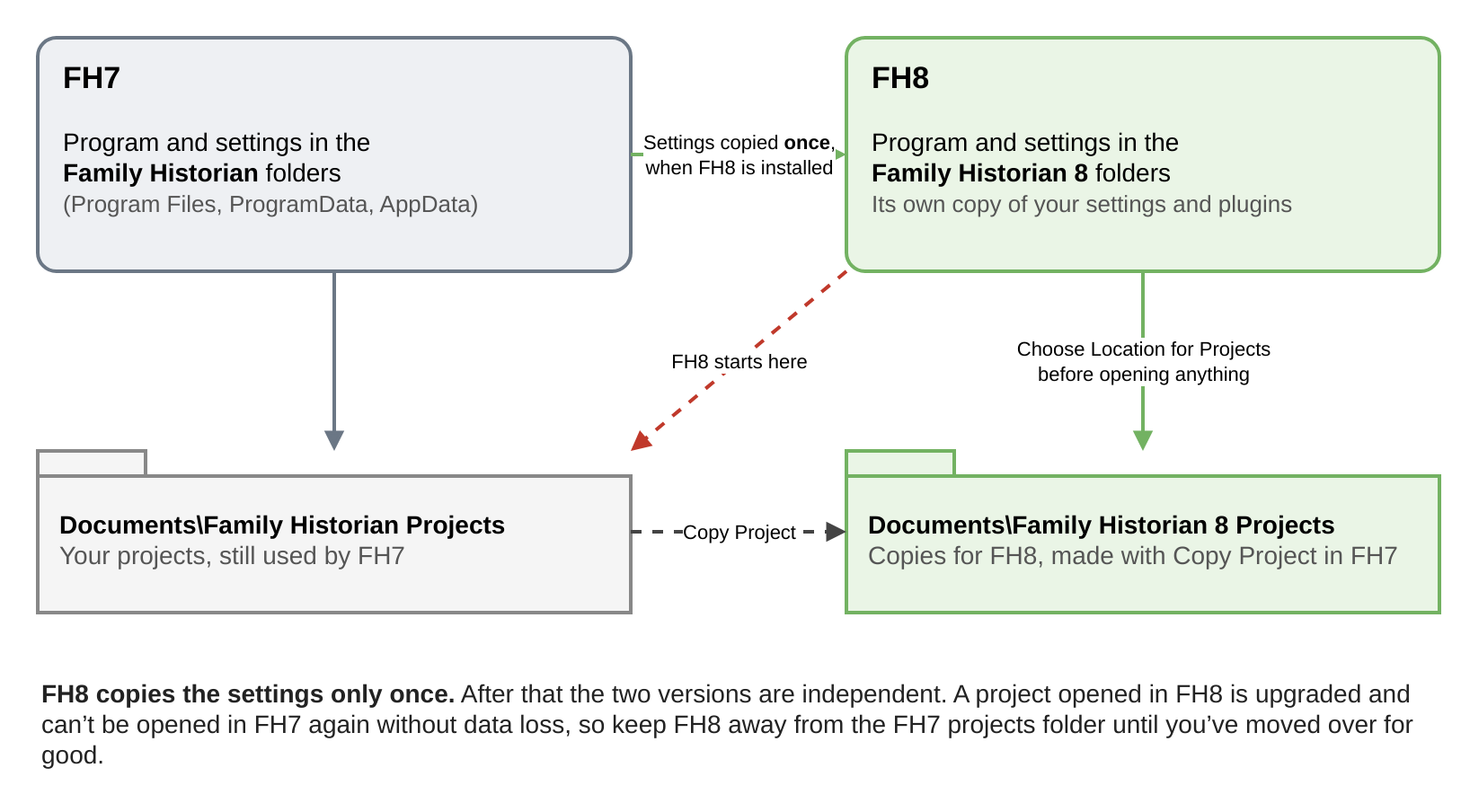
Version 8 installs alongside your existing version. ƒh7 replaced whatever was there; ƒh8 goes into its own folders (Family Historian 8 under Program Files, ProgramData and AppData) and leaves the old version in place. You can try Version 8 before committing to it, but you can also open a project in the wrong version by mistake. Calico PieCalico Pie Limited is a UK software house, and the publishers of Family Historian. recommend uninstalling the old version once you are settled, unless you have a reason to keep it.
While both versions are installed, double-clicking a Family Historian file, such as a project or a plugin, opens it in whichever version Windows has as the default for that type of file. Installing ƒh8 doesn’t always make it the default for every type, so you may find some types opening in one version and some in the other. To change one, right-click a file of that type in File Explorer, choose Open with > Choose another app, pick Family Historian 8 and choose Always. Do this once for each type that opens in the wrong version. Windows Settings > Apps > Default apps isn’t much help here, because it lists both versions as Family Historian, so you can’t tell which is which. Often the cause is a setting that ƒh7 left in your own Windows account, which takes priority over the one ƒh8 makes for the whole PC; choosing Always overrides both. File types that are new in Version 8, such as .fhqx queries, open only in ƒh8.
Uninstalling ƒh7 doesn’t pass its file types to ƒh8. Any that were set to open in ƒh7 are left without a default, and the next time you double-click one, Windows asks which app to use: choose Family Historian 8 and Always.
Your settings are copied across. When ƒh8 is installed on a PC that already has an earlier version, it copies preferences, customisations, factFacts are one of the key concepts at the heart of Family Historian; they are how you record the things that happened to, or described, each ancestor (Individual). sets, custom queries, reports, diagrams, text schemes, source templatesFamily Historian Version 7 introduced the ability to define sources using 'Source Templates' to aid precision and consistency in entering source-identifying information. , plugins, autotext, record flagsRecord Flags are a way of marking an Individual record. and more. Take the settings backup anyway, but you should not need to restore it. Install ƒh8 before you uninstall ƒh7, though: a settings backup made in ƒh7 can’t be restored into ƒh8 (see the Family Historian Copy and Migration Guide), so if ƒh7 has gone first there’s no way to bring your settings across.
Some of these settings, such as the columns you’ve set up in the Records WindowThe Records Window provides a comprehensive view of all the information stored within a Family Historian project., belong to your Windows user account rather than to the PC. Install ƒh8 from the account you normally use for ƒh, and don’t choose Run as administrator: if you do, ƒh8 may copy the administrator account’s settings instead of yours, and those are often just the defaults. If it has already happened, ask Calico Pie support for help: reinstalling isn’t enough on its own, because ƒh8’s settings for your account also have to be removed from the Windows registry.
Keeping Version 8 up to dateWhen an Event happened, or an Attrribute was true.. Calico Pie release updates to Version 8 (8.0.2, 8.0.3 and so on) from time to time. Help > Check for Updates tells you whether there is one and offers to install it; tick Check for Updates Automatically on the Startup tab of Tools > Preferences and ƒh will check for you. Calico Pie list what each update fixes on their Version 8 updates page. Once you’re up to date, the What’s New button in the Check for Updates dialog is greyed out, so use that page to see what changed.
If the update won’t install. If Check for Updates stops with a Windows message saying the program can’t be run, the message comes from Windows, not ƒh: Windows doesn’t trust where the update came from. Add the Family Historian website to your trusted sites (in Internet Options, open the Security tab, click Trusted sites and then Sites), and check that your internet security software isn’t blocking it. Failing that, download the installer and run it yourself. There’s no separate update file; the same installer puts the new version over your existing copy of Version 8. On Calico Pie’s website, go to Downloads and click Family Historian 8 (ignore Latest Free Update, which only describes the update), or go straight to Install Family Historian 8. It’s also the easiest way to update a second PC.
Opening Your Project in Version 8
The first time ƒh8 opens a project, it upgrades the project to the new format. After that, do not open it in ƒh7 or earlier: data would be lost, starting with anything recorded about addresses"The address structure should be formed as it would appear on a mailing label…", according to GEDCOM; however, this is capable of a number of interpretations, and Address and Place are best considered together.. If you want to explore Version 8 before moving over for good, work on a copy of your main project.
Watch where that copy goes. ƒh8 starts with the same projects folder as ƒh7 (Documents\Family Historian Projects), so its Project Window lists all your existing projects, and opening one upgrades it on the spot. To run both versions side by side:
- In ƒh7, open the Project Window, right-click your project and choose Copy Project. Set Location for Copy to a new folder for your Version 8 projects (for example Documents\Family Historian 8 Projects).
- Open ƒh8 and, before opening any project, point it at that folder: Project Window > More Tasks > Project List > Choose Location for Projects.
- Open the copy.
If ƒh8 reports “Failed to take a snapshot” when it opens the project, or can’t save it, Windows’ Controlled folder access is probably blocking it. See Errors Caused by Controlled Folder Access.
Calico Pie’s release notes mention that a snapshot is kept when a project is upgraded. Don’t count on it during a long trial: snapshots are no substitute for the backups described above.
What Changes for Upgraders
Addresses
Addresses are now records, like placesAccording to GEDCOM, a Place should hold "The jurisdictional name of the place where the event took place…" , with their own map position, pictures and notesFamily Historian version 6 and below supports two types of Notes: Local notes (associated with a single person, record, or fact); and Note Records (sometimes called Shared Notes), that can be linked to multiple records and/or facts. Version 7 introduced. The address fields in your project become Address records, each linked to the place of the fact it belongs to, so if you have been using both Place and Address fields there is nothing to do.
If you put whole addresses in the Place field, everything still works and you can leave it. If you want to move the address part into the Address field, the Split Addresses from Places plugin does it once you have upgraded, and lets you choose whether map positions, notes and mediaWhen you add a picture, video, sound recording, document file etc into a Family Historian project, a Media record is created to represent that media item within the project; the Media record includes a link to the actual Media file. move to the new addresses or stay with the places. See Working with Places and Addresses in Version 8.
Sources and Citations
There is a third kind of source, free form, alongside generic and templated, and much more control over how citationsA link between a source and a fact, documenting Where within the source you find information being "cited" to support the fact/conclusion. are output. Existing sources carry on as before. See Sources and Citations in Version 8 (for Upgraders from Version 7).
Queries
The Query Window has been rebuilt. The Rows tab is now the Filters tab, and query files are .fhqx rather than .fhq. Your custom queries are converted when Version 8 is installed, or when you import an old one, but check any you rely on. See An Overview of Queries in Version 8, and An Overview of Smart Folders for the new way of browsing records.
Filters
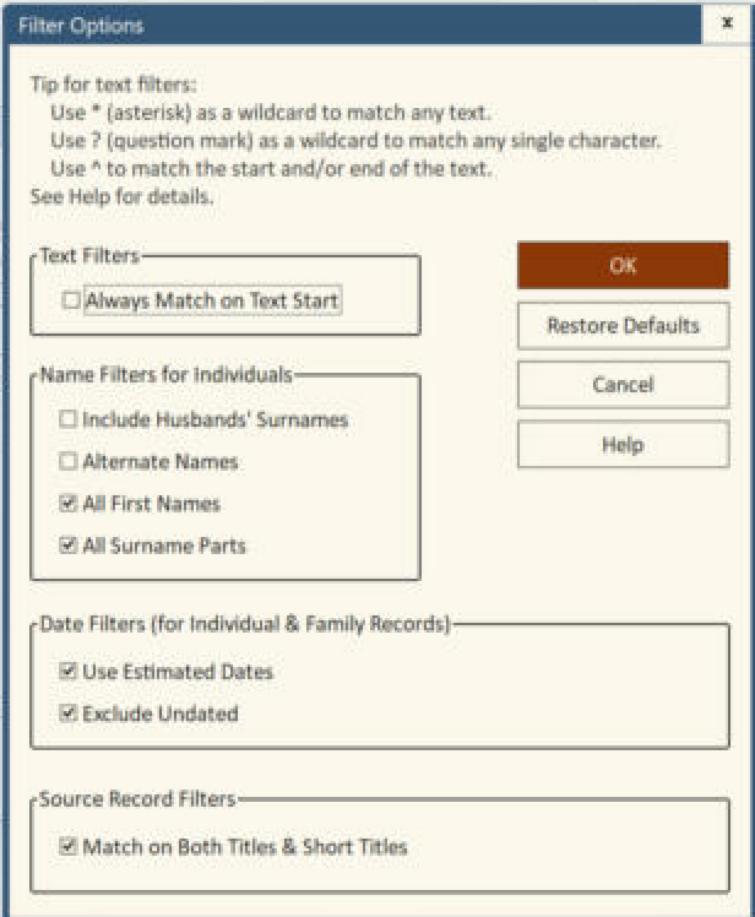
Text filters now match anywhere in a field. In Version 7 a name filter matched the start of each name, so p found Pleasance; now it finds Stephen as well. That applies to the filters in the Records Window and in dialogs that ask you to pick a record, such as Find in Diagram (Ctrl+H). To match only the start, type ^ first (^p), or click Options in the Records Window, or the … button in a dialog, and tick Always Match on Text Start. * and ? work as wildcards. See Filter Options Dialog and Searching and Filtering.
Diagrams
Standard diagrams have a new look. If you had changed the settings of the four core diagrams, your versions are kept as custom diagram types called “V7 – Ancestors” and so on, and Choose Preferred Look for Standard Diagrams on the Charts button will make them the default again. See Diagrams in Version 8.
Plugins
Your plugins are copied across, but not every plugin has been updated for Version 8. Before you upgrade, look up the plugins you rely on in the Plugin StorePublished plugins can be downloaded from the Family Historian Plugin Store. and check that they support Version 8.
If you keep ƒh7 installed, each version has its own plugins: installing or updating a plugin in one doesn’t affect the other. Install plugins from the Plugins window (Tools > Plugins) in the version you want them in, rather than by double-clicking a downloaded file, which installs the plugin in whichever version Windows opens plugin files with.
Coming from Version 6 or Earlier
Your Property BoxThe Property Box is the primary window for data entry and for viewing details of stored records. It is used with records of all types. customisations are suspended, as they were on the move to Version 7, and can be restored with the Old Versions button in the Customize Property Box dialog. Read the upgrade notes in the help first, because the Source recordSource: "where information was found". This could be anything from an archive in a county records office, a book, or even a relative's recorded recollection. Citing your Sources helps to show how you reached a particular conclusion about an Individual. tabs have changed shape. Coming from Version 7, there is nothing to do.
Going Back
If you decide not to continue with Version 8, your old version is still installed (unless you removed it) and its settings have not been touched. Restore the project backups you took before upgrading, because a project opened in ƒh8 can no longer be used in ƒh7.
Work you have done in ƒh8 since upgrading can still be taken back. Export a GEDCOMGEDCOM, an acronym for GEnealogical Data COMmunication, is a specification for exchanging genealogical data between different genealogy software. It is a file format that most genealogical programs and online trees recognise. file (File > Import/Export > Export > GEDCOM File) with Family Historian 7 (or Family Historian 6 or earlier) as the Destination. Address records are excluded by default, since Version 7 has no such thing: the addresses themselves are still exported, but any pictures, notes and map positions attached to them are not. See Export Gedcom File Dialog.