Introduction
Smart Folders arrived in ƒh Version 8 and have no equivalent in earlier versions. They show the records in a projectA Project is a Windows folder, created by Family Historian, which contains all your Family Tree information recorded in Family Historian. Normally located in the Documents\Family Historian Projects folder. sorted into folders and subfolders, each with a count, so that you can browse your data by whatever it contains rather than by a flat list: everyone with an occupation, then everyone whose occupation is “fisherman”; every source, grouped by template and then by the template’s own fields; every eventEvents are things that happened to an Individual and Attributes are things that described them., by type, with columns that suit that type. Nothing about the data changes. A Smart Folder is a saved way of looking at it.
See Smart Folders in the Help file for the full account; this article is an orientation.
Where You See Them
Wherever the smart folder icon appears, clicking it opens a pane on the left showing the folders. That is three placesAccording to GEDCOM, a Place should hold "The jurisdictional name of the place where the event took place…" :
- The Records WindowThe Records Window provides a comprehensive view of all the information stored within a Family Historian project., on every record type’s tab. Select a folder and the list pane shows its records; when a folder brings its own columns the list pane turns a light green as a hint that the headings have changed.
- Any record selector dialog, so you can pick, say, a Source from within a folder rather than scrolling the whole list.
- The Query Window, which can also show folders of things that are not records (factsFacts are one of the key concepts at the heart of Family Historian; they are how you record the things that happened to, or described, each ancestor (Individual)., citationsA link between a source and a fact, documenting Where within the source you find information being "cited" to support the fact/conclusion. and witnessesA Witness is somebody who played an important role in an event (or rarely, attribute) but were not a Principal, e.g. they could have been a bridesmaid at a wedding, rather than one of the individuals getting married.), and which is the only place folders can be edited.

Folders with a yellow icon expand into subfolders; “tip” folders hold results only. The number after each name is the number of records in it at that level, not the number of values: “OccupationsAn occupation is defined in the GEDCOM standard as: ‘The kind of activity that an individual does for a job, profession, or principal activity’. (23)” is 23 people, who may have more than 23 occupations between them.
Folder Sets
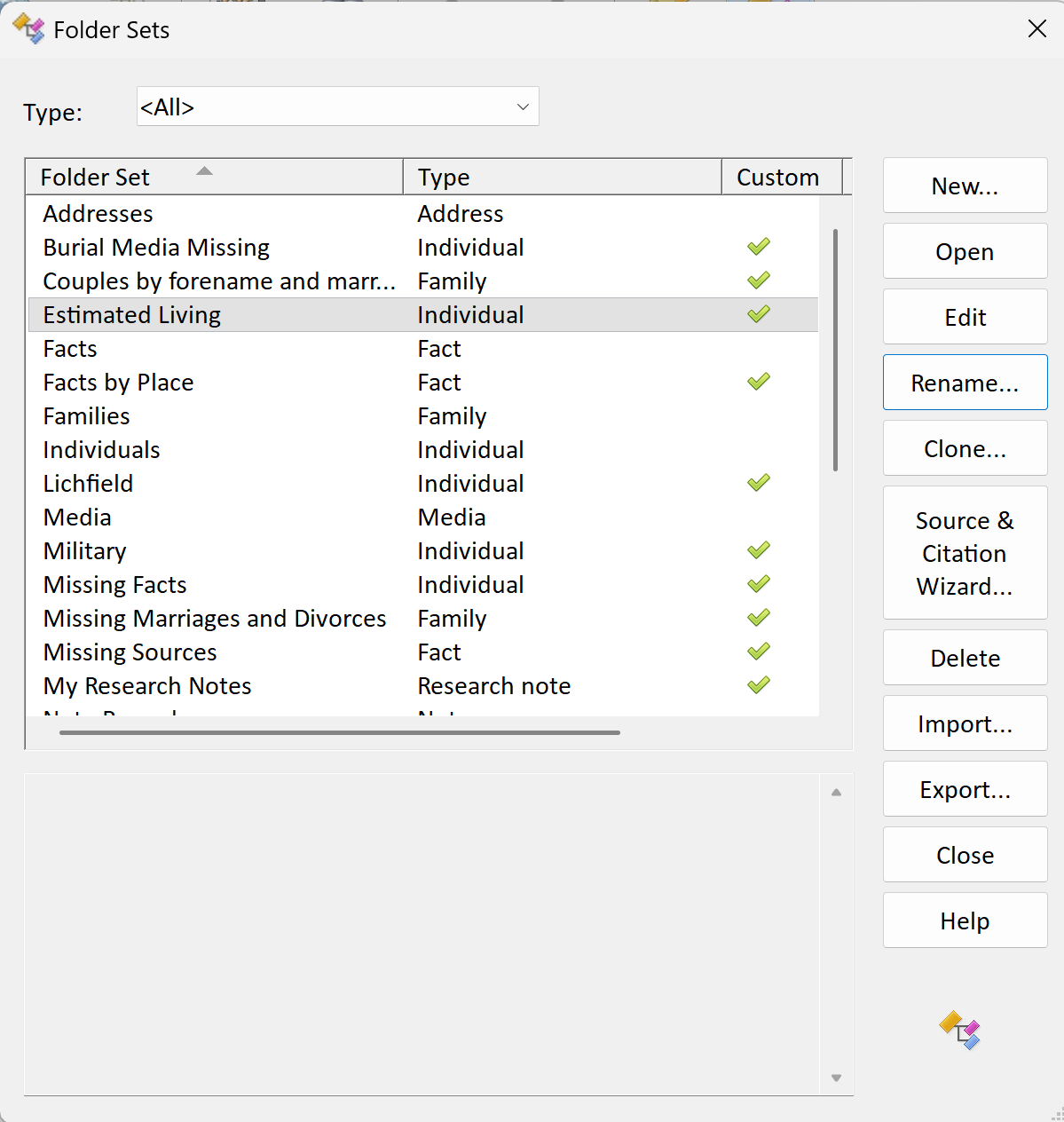
Smart Folders come in folder sets, one set showing at a time, chosen from the dropdown at the top of the pane. ƒh ships with standard folder sets for every record type and for facts, citations and witnesses; the list you see depends on which record type you are looking at. Standard sets cannot be edited, but any set can be cloned as a custom set and the copy edited. Manage Folder Sets, on the Query button’s dropdown and on the cog menu of the smart folder pane, is where sets are created, cloned, renamed, deleted, imported and exported; folder set files have the extension .fhsf, and can be shared like queriesQuerying is a very powerful feature that allows you to specify and save criteria for identifying a set of records of a given record type.. Folder sets contributed by FHUGThe Family Historian User Group is a group of user with wide-ranging experience, from newcomers to very experienced users, all of whom are very willing to shared their knowledge about the programme. members are in the Smart Folders section of our Downloads; double-click a downloaded file to install it, or use Import in Manage Folder Sets. Missing Facts is a good one to start with, since it is obvious what it is finding.
Sources: the Lumper and Splitter Question
One useful application is the SourcesSource: "where information was found". This could be anything from an archive in a county records office, a book, or even a relative's recorded recollection. Citing your Sources helps to show how you reached a particular conclusion about an Individual. and Source Citations folder sets, which contain Auto folders, which read the source templatesFamily Historian Version 7 introduced the ability to define sources using 'Source Templates' to aid precision and consistency in entering source-identifying information. in the current project and generate folders grouped by template category, with the template’s fields as columns, and keep themselves in step as templates change. The practical effect is that it no longer much matters whether you record sources as a lumper (one source per censusCensus records are national collections of population statistics. They usually record details about members of a household on a particular date, and are typically collected every ten years.) or a splitter (one per household): either way you can browse the citations as if they were organised the other way. See Sources and Citations in Version 8 (for New Users).

Designing Your Own
All editing is done in the Query Window with the Design Mode button on the smart folder toolbar pressed. Start by cloning a standard set that is close to what you want. In design mode you see the folders as designed rather than as displayed: a single designed folder can expand into a whole branching tree when viewed.
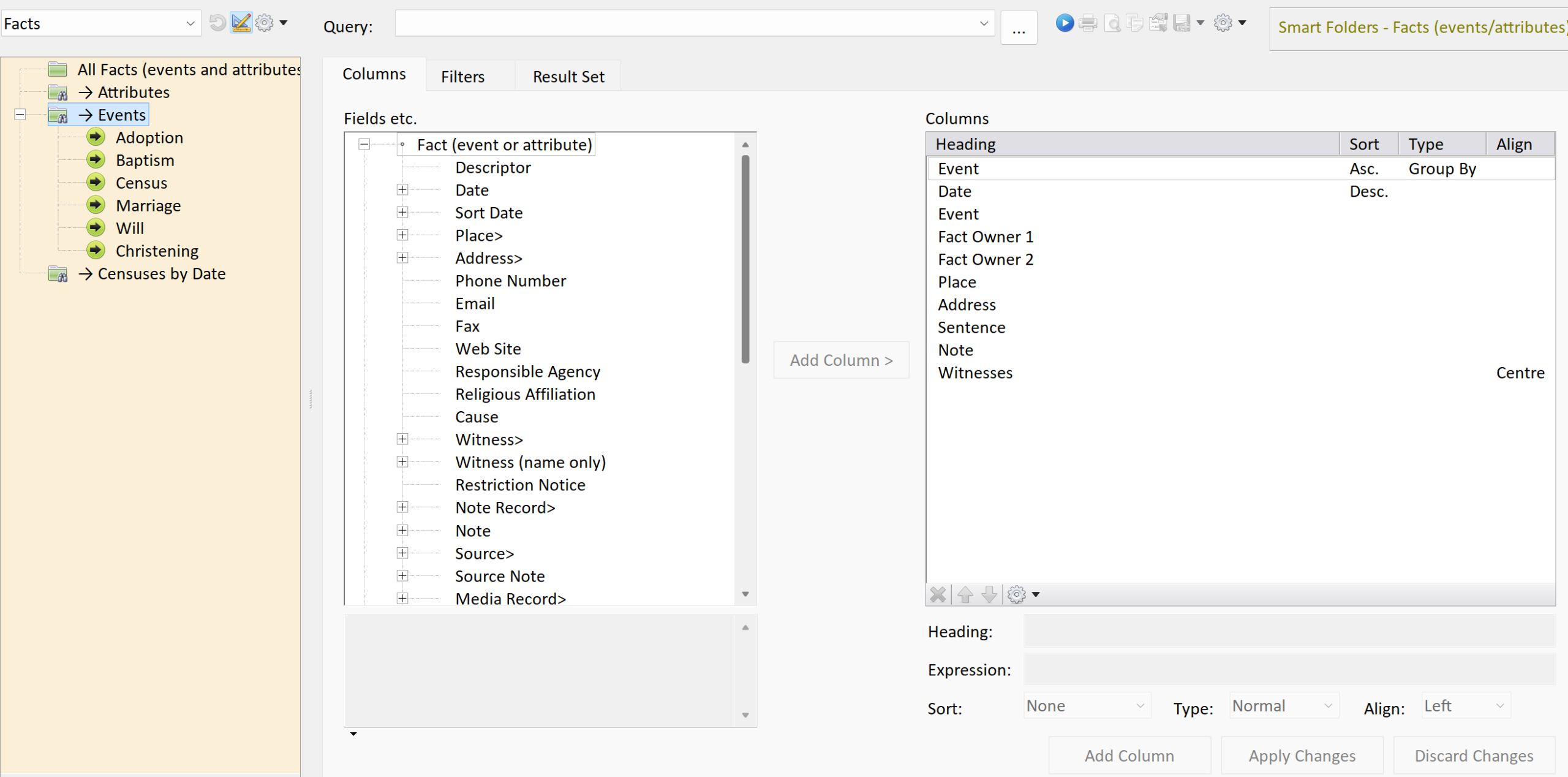
There are four folder types, set in the Edit Smart Folder dialog:
- Simple: no filtering, no columns of its own; a plain container for other folders.
- Query: has a query attached. Its Filters tab decides which records come in (the same filters as an ordinary query), its Columns tab does two jobs: any column whose type is Group By splits the folder into one subfolder per value (two Group By columns give two levels), and, if Query specifies display columns is ticked, the remaining columns are what the list pane shows. Group By columns are always hidden, so add a field twice if you want it both to group and to display.
- PluginPlugins are small programs that allow new features to be added without upgrading Family Historian itself; some plugins are written by Calico Pie and others are written by users.: a LuaThe language in which Family Historian plugins are written. script does the filtering and grouping, which allows things a query cannot, such as putting one record into several sibling folders. See the Plugin Help, under Special Plugin Types.
- Auto: Sources and Source Citations sets only; generated from the project’s source templates as described above.
A Column Set Variant sits beneath a Query or Plugin folder and supplies a different set of columns for particular subfolders: the standard Facts set uses one so that the Marriage folder shows spouses and bridesmaids while Birth does not. Its Filters tab has a single “Group By Column Test” naming the subfolder value it applies to.
Two pieces of Calico Pie’s own advice worth repeating: don’t use prompts in a query or plugin inside a smart folder, since ƒh runs them whenever it needs to and the prompt will appear at unexpected moments; and make the first displayed column of a record-type folder the record itself (%INDI%, %SOUR% and so on), so the folder looks the same in the Records Window as in the Query Window.
Queries and Smart Folders
A query answers a question once and gives you a table. A smart folder keeps answering as you click, and shows counts as you go. If you find yourself running the same query with different prompt values, or building a query only to see what values a field takes, a folder set with a Group By column is usually the better tool. For anything with a prompt, a fixed sort order, a printed layout or a CSV export, use a query; see An Overview of Queries in Version 8.