Introduction
Places and Addresses"The address structure should be formed as it would appear on a mailing label…", according to GEDCOM; however, this is capable of a number of interpretations, and Address and Place are best considered together. identify where a FactFacts are one of the key concepts at the heart of Family Historian; they are how you record the things that happened to, or described, each ancestor (Individual). happened. This article is for ƒh Version 8, which introduced Address records and changed the way the two fit together. If you use Version 7 or earlier, see Working with Places and Addresses in Version 7 and below, where the choices are rather different.
Places and Addresses in Version 8
A Place is the jurisdictional location: town or city, county, country. An Address is whatever adds precision within that place: a house number and street, a church, a hospital, a cemetery and plot. Despite the name, an Address does not have to be a postal address.
Both are records. Place recordsAccording to GEDCOM, a Place should hold "The jurisdictional name of the place where the event took place…" have been around since Version 6; Version 8 adds Address records, which behave in the same way. Typing a value into a Place or Address field creates the record if it does not already exist, and ƒh offers to autocomplete from existing values as you type. You can see them at View > Other Record Lists > Places and View > Other Record Lists > Addresses, or via Tools > Work with Data.
Each Address record is linked to one Place record, and an address is unique within its place. So “St Mary’s” under Newtown, Kent and “St Mary’s” under Oldtown, Kent are two separate Address records, each with its own notesFamily Historian version 6 and below supports two types of Notes: Local notes (associated with a single person, record, or fact); and Note Records (sometimes called Shared Notes), that can be linked to multiple records and/or facts. Version 7 introduced, mediaWhen you add a picture, video, sound recording, document file etc into a Family Historian project, a Media record is created to represent that media item within the project; the Media record includes a link to the actual Media file. and location.
Because an address belongs to its place, ƒh keeps the two in step. If you change the Place of a fact that has an Address, the Address moves to the new Place (creating a new Address record if need be). You cannot attach an Address from one Place to a fact in another.
Sorting Addresses
The Addresses tab of the Records WindowThe Records Window provides a comprehensive view of all the information stored within a Family Historian project. sorts addresses the way people read them, not strictly alphabetically. A plain alphabetical sort puts “12 Main Street” before “2 Main Street” and scatters the houses in one street among the others. ƒh8 sorts on the street first and then by house number within it, so 2 Main Street comes before 12 Main Street and an unnumbered “Main Street” sits with them. The place plays no part in the sort. Clicking the heading again reverses the order, which can make the list look random until you notice. Addresses with the number after the street name, as is usual in much of continental Europe, sort alphabetically, number and all.
Tools > Work with Data > Addresses still sorts alphabetically, as before.Tip: To get the plain alphabetical order in the Records Window as well, add a second column. Right-click in the Addresses tab and choose Configure Columns. Add <Other…> with the expressionExpressions are composed from two technical features: Data References and Functions; they also often involve Operators to compare values. %_ADDR.TEXT%, then click Edit and set the sort to ascending. You can then switch between the two orders by clicking one heading or the other. To see the place alongside the address, use =AddressAndPlace(%_ADDR%) instead.
What an Address record holds
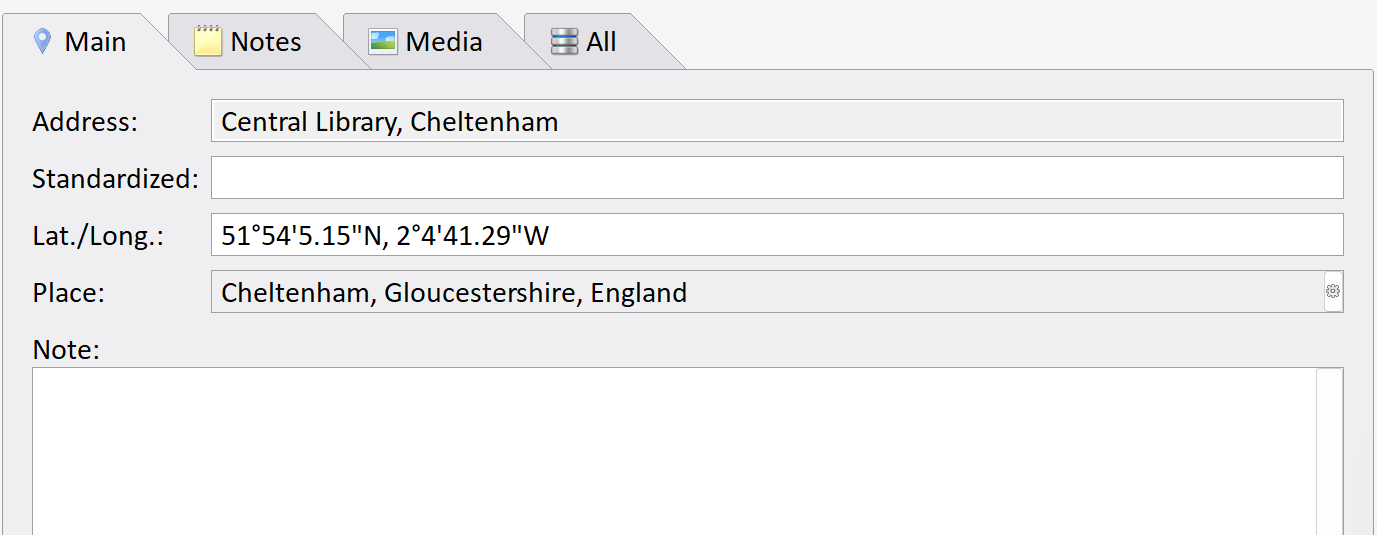
- Latitude and longitude, so addresses can be shown on the Map Window (see below).
- Notes and Media, as for a Place record.
Recommended Approach
With Address records available, the sensible division is the one the record structure assumes: the Place holds the jurisdiction and the Address holds only what is more precise than the place. For example:
| Address | House or building name or number, Street (or church, cemetery, hospital, etc.) |
| Place | Village or Suburb, Town or City, County, Country |
Repeating the place details inside the address is allowed but not recommended: it is duplication, and the two can drift apart.
It’s important to be consistent. Decide on a standard structure for Places and for Addresses before you enter much data, always include the country in a Place, and leave an empty element between commas where a part is missing so that the columns in Record Lists and Tools > Work with Data line up.
Displaying Address and Place Together
ƒh can output a single value from the two fields: the address if only that is recorded, the place if only that is recorded, or a fusion of the two with duplicated parts removed. In a QueryQuerying is a very powerful feature that allows you to specify and save criteria for identifying a set of records of a given record type., add the Address and Place column from Common FunctionsA 'function' is an expression which returns values based on computations. Typically, functions require data to be supplied to them as 'parameters'. A function in Family Historian is similar to a 'function' as used in spreadsheet applications (such as MS on the Columns tab. Behind it is the built-in functionAddressAndPlace, which can be used in reports, diagrams and expressions. Place qualifiers (Short, Medium, Tidy, Full) work as before.
Addresses on the Map Window
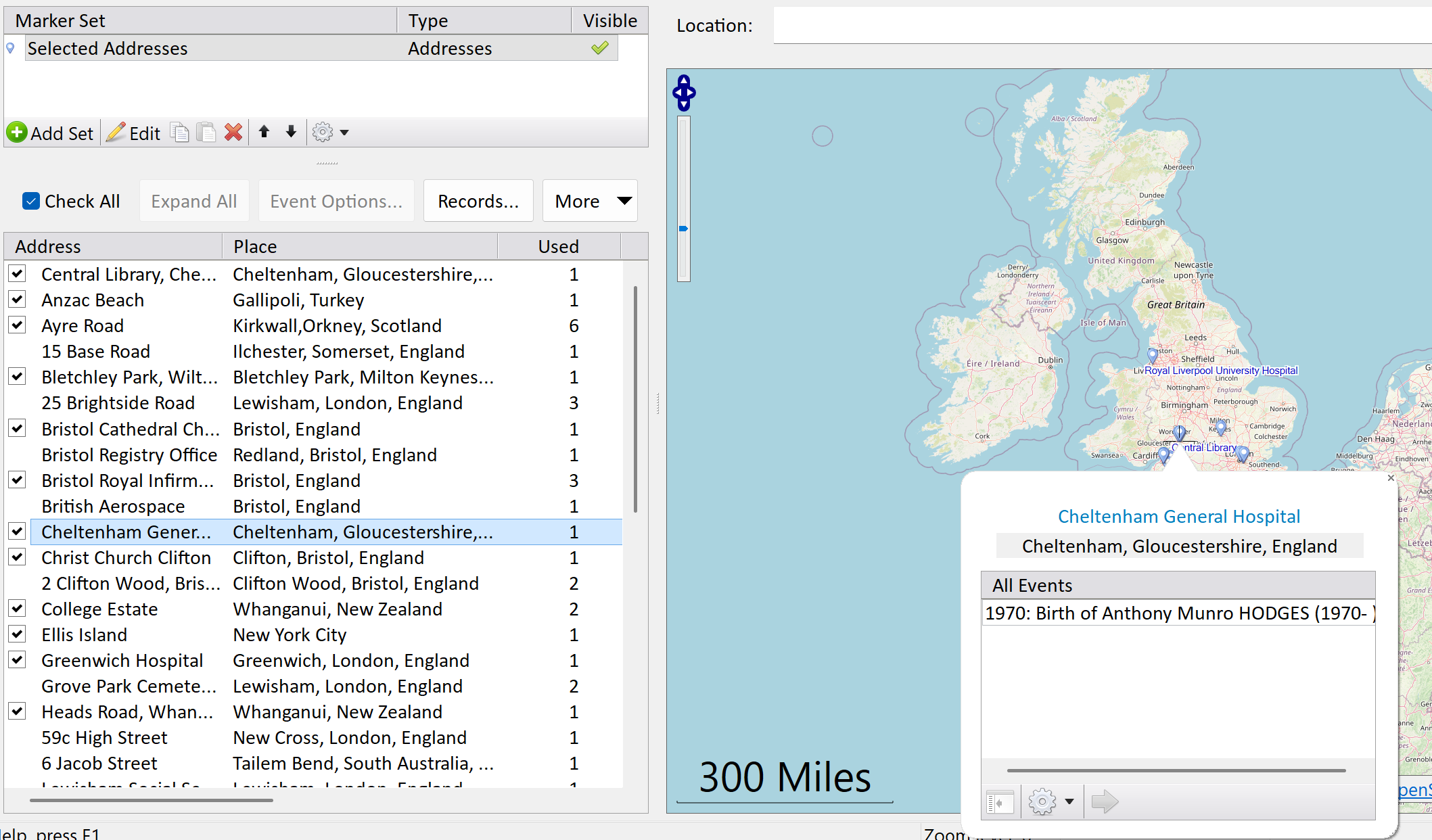
Place records are geocoded automatically. Address records are not. To put an address on the map:
- Open the Map Window and choose Map Addresses to create an Addresses marker set, or use the addresses preferred option when mapping Individuals & EventsEvents are things that happened to an Individual and Attributes are things that described them., which uses the address location where it is known and falls back to the place where it is not.
- Right-click an address in the list and choose Locate in Map. ƒh offers to search the map for the address, or to zoom to its Place so you can position it by hand. This works one address at a time, as you ask for it.
- Alternatively drag the address from the list onto the map, or enter latitude and longitude in the Address record directly.
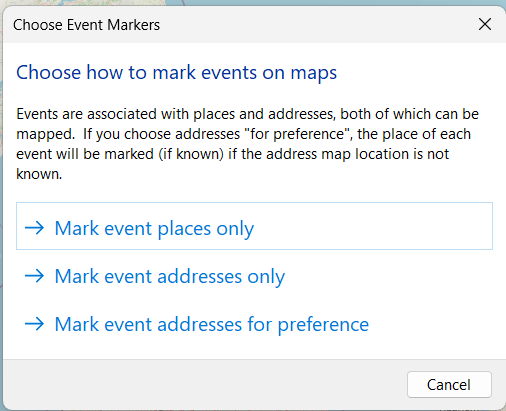
The Show Address Markers for Selected Place(s) command (under More above the item list) adds markers for all geocoded addresses within the selected places. See The Map Window and Geocoding and the Map Window.
The Add Maps pluginPlugins are small programs that allow new features to be added without upgrading Family Historian itself; some plugins are written by Calico Pie and others are written by users. geocodes Address records in bulk, among other things, for those with more addresses than they care to locate one by one.
Upgrading from Version 7
Address fields in an existing projectA Project is a Windows folder, created by Family Historian, which contains all your Family Tree information recorded in Family Historian. Normally located in the Documents\Family Historian Projects folder. become Address records, each linked to the Place of the fact it was entered against, so a project that already used both fields needs no work.
If you followed the “Places Only” approach in earlier versions and put the whole address in the Place field, you now have a choice. You can leave things as they are; everything still works, and the place will geocode to building level as before. Or you can split the address part out into the Address field to take advantage of Address records. There is no tool for this in Version 8; the Rearrange Address and Place Parts plugin has not been migrated. If you use it in Version 7 before upgrading, be aware that the geocodingGeocoding is the process of converting addresses/places (like a street address) into geographic coordinates (latitude and longitude), which you can use to place markers on a map. stays with the (now shorter) Place, and the new addresses will need locating afresh.
The Map Life Facts plugin does not work in Version 8, and the coordinates it holds for address and place combinations cannot be brought into Address records.
Historical Name or Current Name?
Record the place and address as they appear in the sourceSource: "where information was found". This could be anything from an archive in a county records office, a book, or even a relative's recorded recollection. Citing your Sources helps to show how you reached a particular conclusion about an Individual., and put the modern equivalent in the Standardized PlaceA Standardized Place can be used to record the modern equivalent of an historical place name to aid in correct geocoding. field of the Place record, with more detail in its note if needed. Nothing about this has changed in Version 8.