Introduction
Version 8 of ƒh has a new graphics engine, which uses the graphics card where there is one, so diagrams draw faster and look different. This article covers what has changed for anyone who knows diagrams from earlier versions. For how diagrams work in general, see An Overview of Diagrams and Charts.
If your diagrams have lost icons, box text or other changes you made in Version 7, start with What Happens to Your Version 7 Diagrams below.
The New Look
Boxes have a light glow rather than a shadow, the root person’s box is white and names are coloured by sex. All standard diagrams use the new look by default; see Choosing a Preferred Look below if you want something else.
Charts saved in earlier versions still open, but the new engine placesAccording to GEDCOM, a Place should hold "The jurisdictional name of the place where the event took place…" text slightly differently. The Legacy Charts (pre-v8) setting in Advanced Preferences (General tab of Tools > Preferences) chooses what to favour: text quality, position accuracy, or (the default) position if the chart contains shapes and text quality if not. The difference is small and most likely to show when saving to PDFThe Portable Document Format (PDF) is a file format developed by Adobe to present documents in their original formatting, independent of software, hardware, and operating systems. PDF files can contain text, graphics, links, and buttons, form fields, audio, video, and. See Advanced Preferences.
What Happens to Your Version 7 Diagrams
When Version 8 is installed on a PC with an earlier version, it copies the settings across, including custom diagrams and text schemes. If you had changed the settings of the four core standard diagrams (Ancestors, Descendants, Ancestors & Descendants and All Relatives), your versions are saved as custom diagram types with a “V7 – ” prefix (V7 – Ancestors and so on), and the standard diagrams revert to the new look. The copies are on the Custom Diagrams submenu of the Charts button on the main toolbar.
To give the standard diagrams your old look back, see the next section. Saved charts and charts in books are unchanged. See Notes on Upgrading to Version 8.
If a diagram’s settings still haven’t come across (box expressions on a diagram you never saved as a custom type, for example), open it in ƒh7, save it as a custom diagram type, export that (File > Import/Export) and import it into ƒh8 the same way.
Choosing a Preferred Look for Standard Diagrams
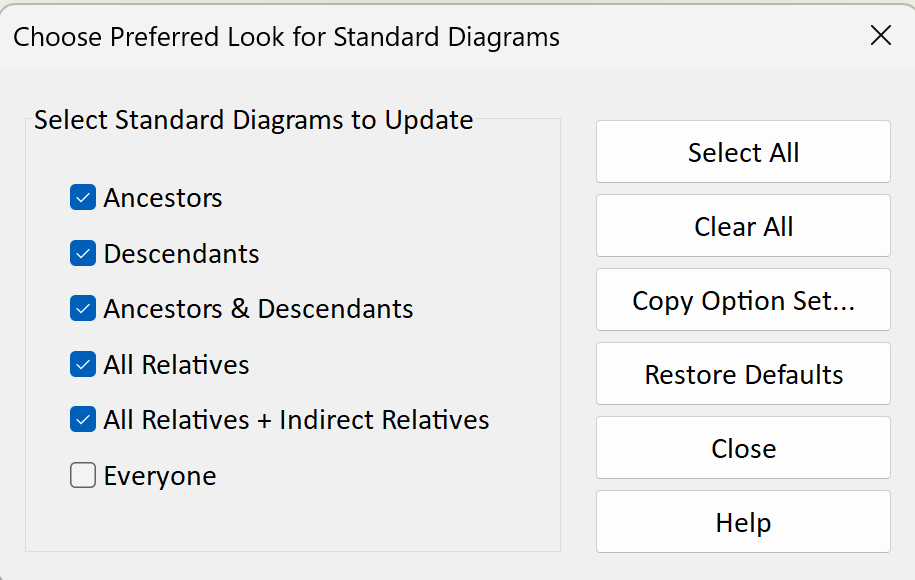
Click the Charts button on the main toolbar and choose Choose Preferred Look for Standard Diagrams. The dialog lists six standard diagrams: Ancestors, Descendants, Ancestors & Descendants, All Relatives, All Relatives + Indirect Relatives, and Everyone. Tick the ones to change, click Copy Option Set and select a diagram, standard or custom, whose look you want. Its options are copied: an Ancestors diagram is still an Ancestors diagram, but uses the boxes, text, icons, layout and orientation of the one you selected.
Everyone and All Relatives + Indirect Relatives can contain several trees, so background stripes and other background options are not copied into them, as stripes only line up with the first tree. The change applies only to diagrams opened afterwards; open diagrams, saved charts and book charts keep their look. Restore Defaults in the same dialog returns any of the six to the installed look. See How to Choose Preferred Look for Standard Diagrams.
Options for any diagram type can now be changed and reused, and the Text and Boxes tabs of Diagram Options each have a Restore Defaults button.
Boxes: Presets, Effects and Lines
On the Boxes tab of Diagram Options, Save as Preset at the bottom of the presets list saves the current box settings for use in other diagrams. Presets can be exported and imported with File > Import/Export > Diagram Box Preset. See Diagram Options Dialog: Boxes Tab.
The Box Features dialog (Edit Features on the Boxes tab) has a new Effect setting; Glow is the one the default look uses. Shadows and background pictures now have an opacity setting, and boxes can have no outline. See Box Features Dialog.
Icons
The standard box icons are now SVG rather than EMF, so they scale without blurring. Icons can be exported, and your own imported, with File > Import/Export > Diagram Box Icons; imported icons go into a Custom category. SVG, PNG, BMP and EMF are accepted, but SVG gives the best results. Free SVG icons are widely available, and Inkscape (also free) will make them. See Diagram Box Icons Dialog, and Using Icons for how to attach icons to conditions.
Two New Text Schemes
Two new text schemes use record flagsRecord Flags are a way of marking an Individual record. to keep details out of diagrams:
- Birth, Marr, Death (hide details if Living flag set) shows only the name of anyone with the Living flag set.
- Birth, Marr, Death (hide name if Private flag set) shows nothing, not even the name, for anyone with the Private flag set.
Other text schemes can be modified the same way. See Diagram Options Dialog: Text Tab.
Fan Charts and Pedigree Charts
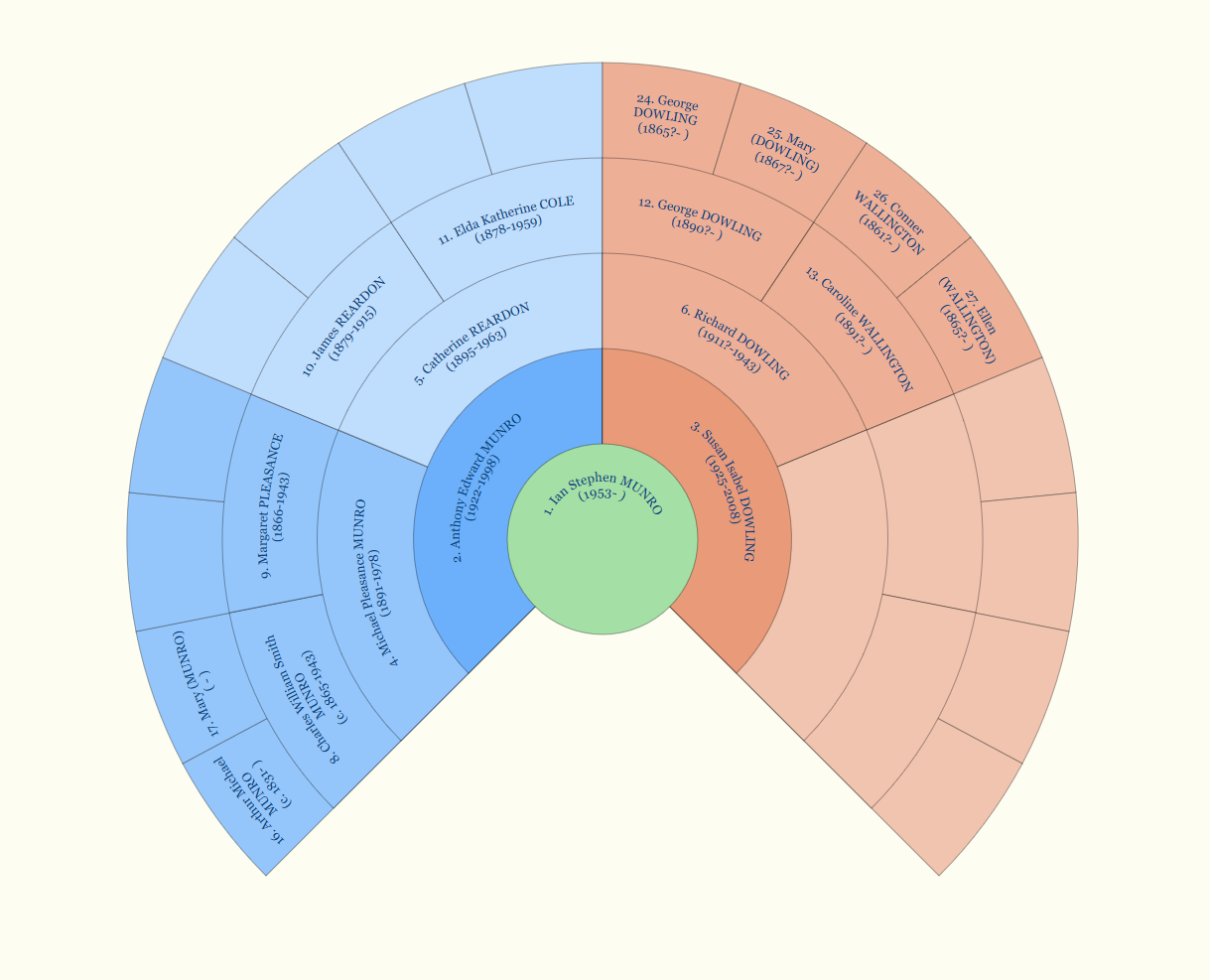
Fan charts now default to three-quarter size, with an optional circle at the root and optional, configurable radial lines from the centre; the layout has also been improved. See Fan Chart Dialog. The Pedigree Chart has been improved too, and can be made book-compatible when it is created; see Pedigree Chart Dialog.
Diagrams in Books
Book Layout Compatibility, on the Diagram menu, matches a diagram’s page layout to a chosen book, so that it fits a page exactly or spans several pages as intended. Diagrams can also be edited after they have been added to a book. See Book Layout Compatibility for Charts and Creating a Book.
Shapes and Other Improvements
Changes to shapes (text boxes, pictures, lines and so on) in the Diagram Window can now be undone and redone. Shapes can be aligned with one another or made the same height or width, and locked shapes can’t be moved or resized by accident. See Diagram Elements.
All Relatives diagrams now draw dotted crossing lines less often, and only where they are needed.