Introduction
A book containing as much or as little information as you require on an individual, their family, their ancestors or descendants. The book creation is accessed from the main menu Publish > Books
How to Create a book
Once you have selected the menu option above you will be asked if you want to open an existing book or create a new one. If a new one then you will be required to give it a name. This dialog box is then displayed allowing you to choose the various elements that make up the book.
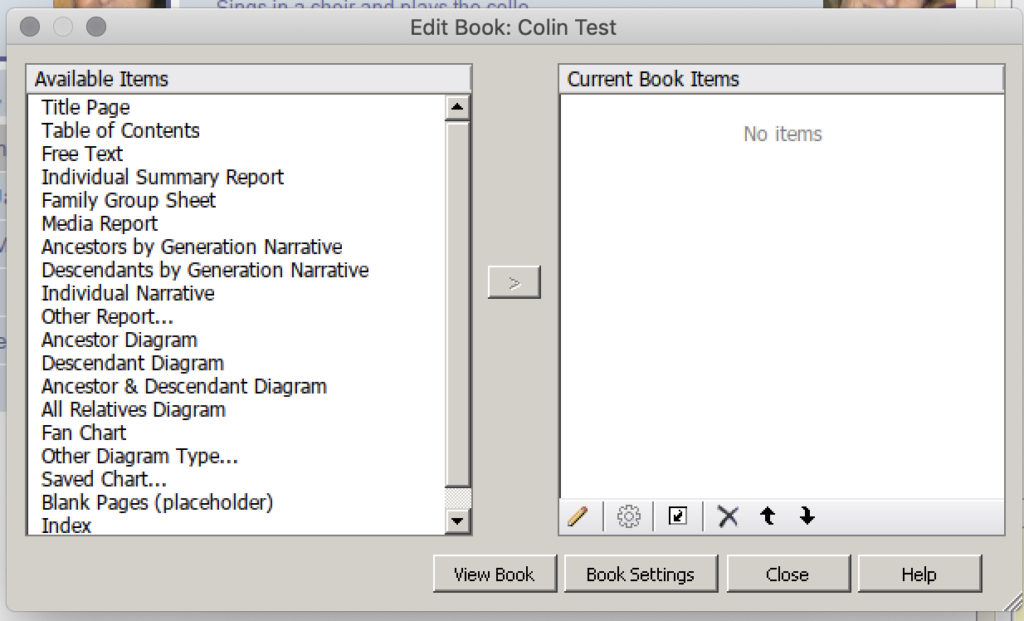
You select which of the sections that you want in the book by highlighting an item in the left pane and clicking  to move it to the right pane. Depending on which of the options are chosen in the left pane an additional dialog box may be displayed to choose additional options before the item is added to the right pane.
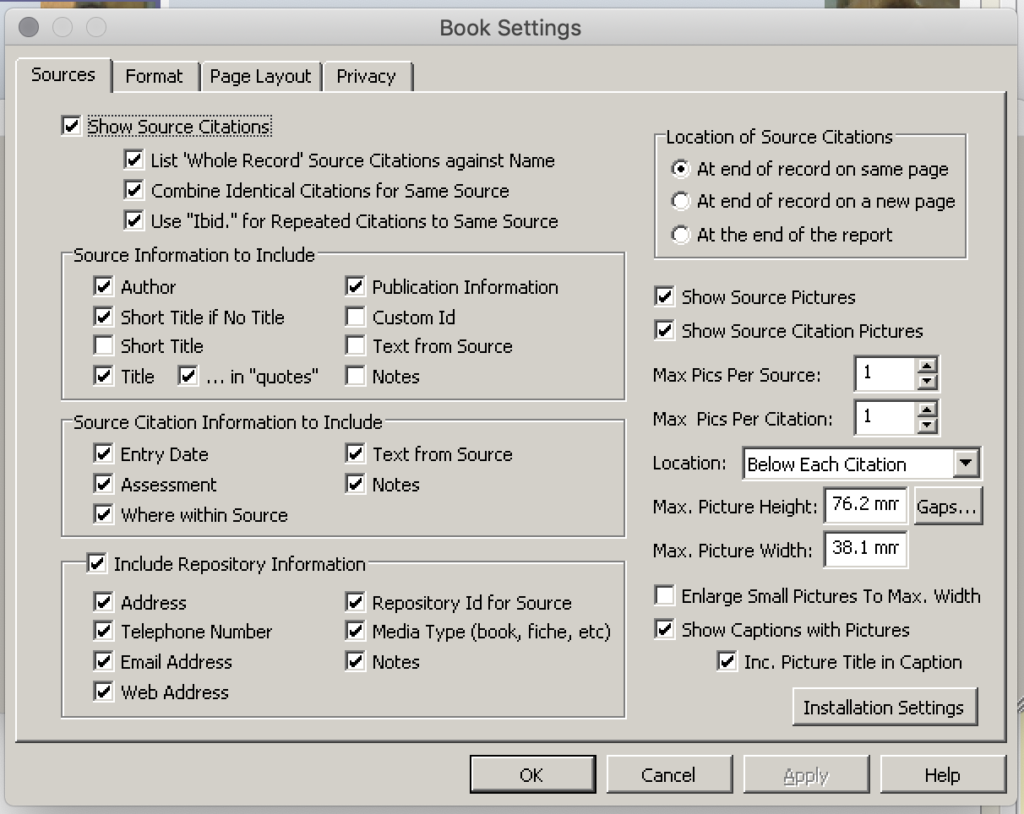
Once you have selected all the items that you require for the book click on Book Settings to see the various configuration items for your book.
Finally select the View Book option to see what your book looks like.
Should you wish to make changes to the book you can select the edit option in the initial Publish > Books dialog box and change or add to the books contents. Once you are happy with the book then it can be printed, saved as a pdfThe Portable Document Format (PDF) is a file format developed by Adobe to present documents in their original formatting, independent of software, hardware, and operating systems. PDF files can contain text, graphics, links, and buttons, form fields, audio, video, and or saved as a word document for further external editing.
Books in Version 8
ƒh 8 makes books a good deal more flexible:- A Pedigree Chart can be added to any book, and there is a new Pedigree Chart (as booklet) report that produces one on its own. Its options can be changed at any time, not only when it is added.
- Diagrams can be edited after they have been placed in a book, and book layout compatibility keeps a chart’s page layout matched to the book, so a five-page diagram occupies exactly five book pages. You can set a diagram’s layout to suit a book before adding it.
- A small diagram, figure or map can occupy part of a page rather than a whole one.
- Scrapbook and photo-book pages, built from your own images and text, can form a whole book or a section of one. The snipping tool on the Tools menu clips part of a chart, diagram or map straight into a scrapbook page or a Media recordWhen you add a picture, video, sound recording, document file etc into a Family Historian project, a Media record is created to represent that media item within the project; the Media record includes a link to the actual Media file.. See How to Create a Scrapbook or Photo Book.
- Address List and Place List reports can be included to describe the addresses"The address structure should be formed as it would appear on a mailing label…", according to GEDCOM; however, this is capable of a number of interpretations, and Address and Place are best considered together. and placesAccording to GEDCOM, a Place should hold "The jurisdictional name of the place where the event took place…" mentioned in the book.
- The index covers people appearing in charts (tree, fan and pedigree) as well as in reports.
- A plugin-generated report added to a book now gives one chapter per record, headed as set in the book.
Book Free Page Content
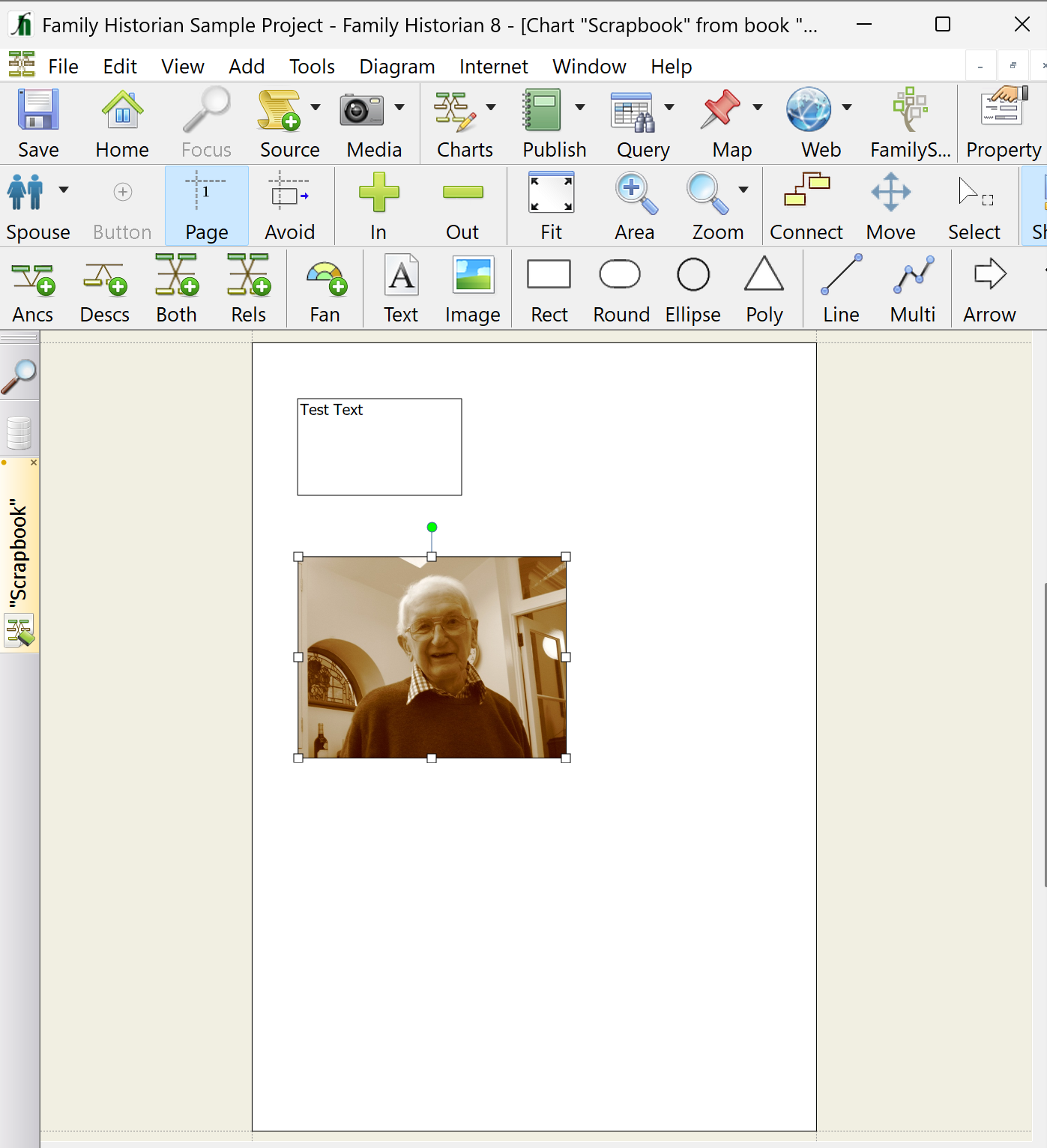
Sometimes a Publish > Books page may need images and text that cannot be created using a standard Report. In ƒh 8 a scrapbook page (above) is the simplest answer. In earlier versions, the workaround is to compose the page as a diagram. In ƒh V7 try using View > Charts > Blank Diagram or Charts > Blank Diagram that offers some features like a word-processor to compose a page. Prior to ƒh V7 use the View > Standard Diagram Types > Blank Diagram command. Use the following steps to create the page, but remember to take into account the paper size and space needed for Margins and Header/Footer in the Book Settings, Page Layout tab.
- Use Diagram > Page Boundaries > Show Page Boundaries to ensure the images and text fit the page and allow for margins, etc.
-
Use Diagram > Options > Background: One colour and in Options select white, OK.
-
Use Diagram > Insert into Diagram > Picture and choose any image file.
-
Adjust the size & position of this image similar to an image inserted into MS Word.
-
Use Diagram > Insert into Diagram > Text Box and draw a box where text is wanted.
-
Use Diagram > Format and enter the Text required on the page. It can combine plain text with Expressions to extract data from the ProjectA Project is a Windows folder, created by Family Historian, which contains all your Family Tree information recorded in Family Historian. Normally located in the Documents\Family Historian Projects folder..
-
Click Font button and choose a font, style, size, colour, etc.
-
Set Alignment as required to Left, Centred, Right, or Justified.
-
On Line and Fill tab set Fill and Line to None or as required.
-
Repeat any of above for more images & text, and drag them where wanted on page.
-
Use Diagram > Order & Grouping to put say text over images, or group images & text into single entities.
-
Finally use Diagram > Save Diagram As > Family Historian Chart with an appropriate name, which will appear in the Book table of Contents.
Now in Edit Book select Saved Chart, then click > and choose the Chart name saved above.
In Select Chart Pages click Position on Page, then use cursor to drag to middle of one page.