Introduction
Family Historian version 8 does not change the way SourcesSource: "where information was found". This could be anything from an archive in a county records office, a book, or even a relative's recorded recollection. Citing your Sources helps to show how you reached a particular conclusion about an Individual. and CitationsA link between a source and a fact, documenting Where within the source you find information being "cited" to support the fact/conclusion. work in the way that version 7 did. Everything you did in version 7 still works, including source-driven data entrySource-Driven Data Entry is a workflow that starts when you acquire a source, moves on to entering the details of that source and then on to creating the facts about people that you glean from the source (often automatically creating, Data Entry Assistants and Ancestral Sources. What version 8 adds is a third type of source, a way to fine-tune what citations look like, and Smart Folders, which change how you look at sources rather than how you record them.
This article assumes you’re familiar with working with Sources and Citations in ƒh7. If you’re upgrading from version 6 or earlier, read Sources and Citations in Version 7 (for Upgraders from Version 6) first, since almost all of it still applies. If you’re a complete newcomer to Family Historian, read Sources and Citations in Version 8 (for New Users).
What Has Changed?
- Free Form Sources. Alongside Generic and Templated SourcesFamily Historian Version 7 introduced the ability to define sources using 'Source Templates' to aid precision and consistency in entering source-identifying information. there is now a third type, with no structured fields: you type the footnote, short footnote and bibliography entry yourself, with bold, italic and underline if you want them. The Source button, Add > Source/Citation, the Citation List Pane’s Add Citation button and the Automatic Source Citation pane all offer Add New Free Form Source next to the generic and templated options.
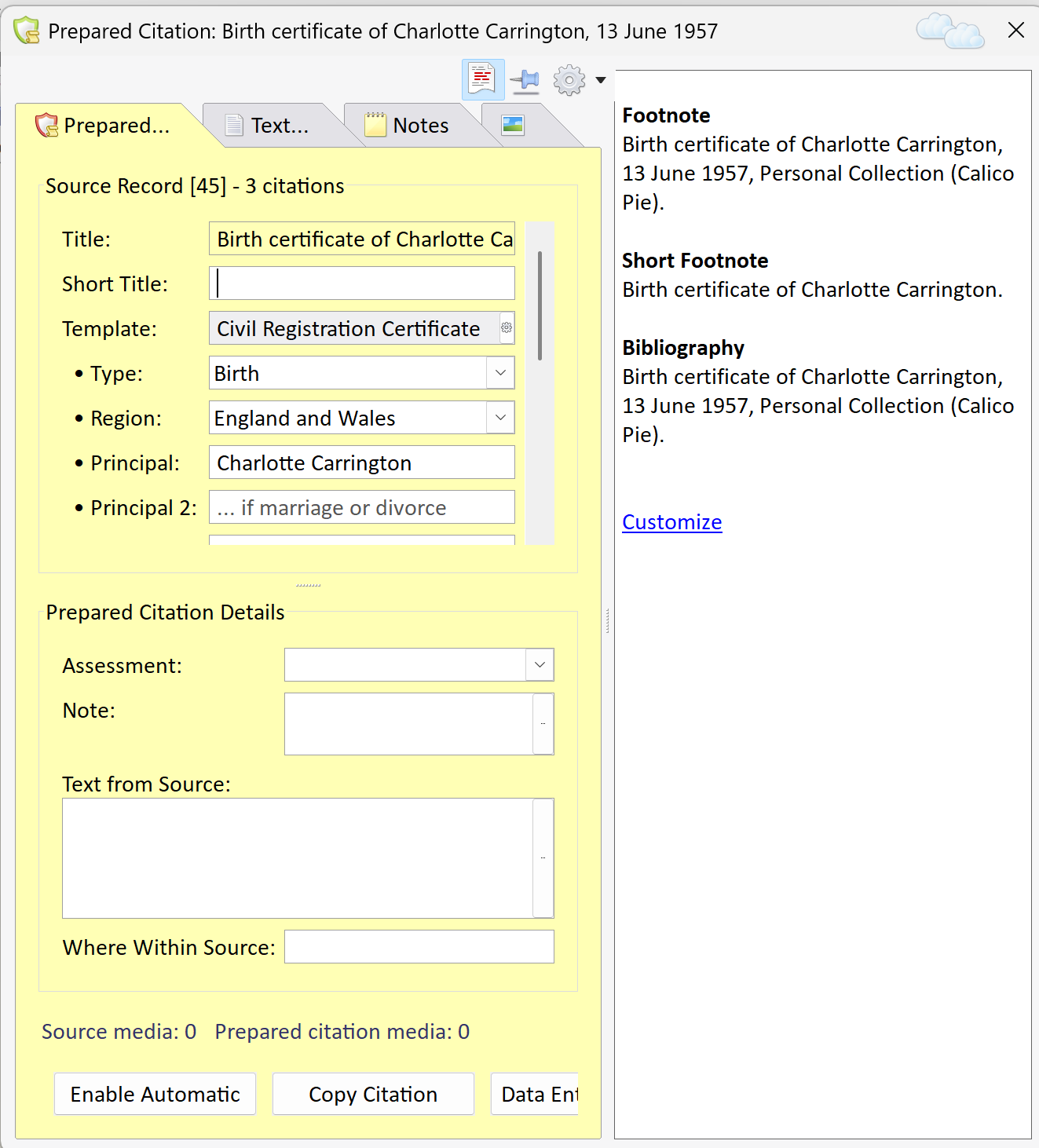
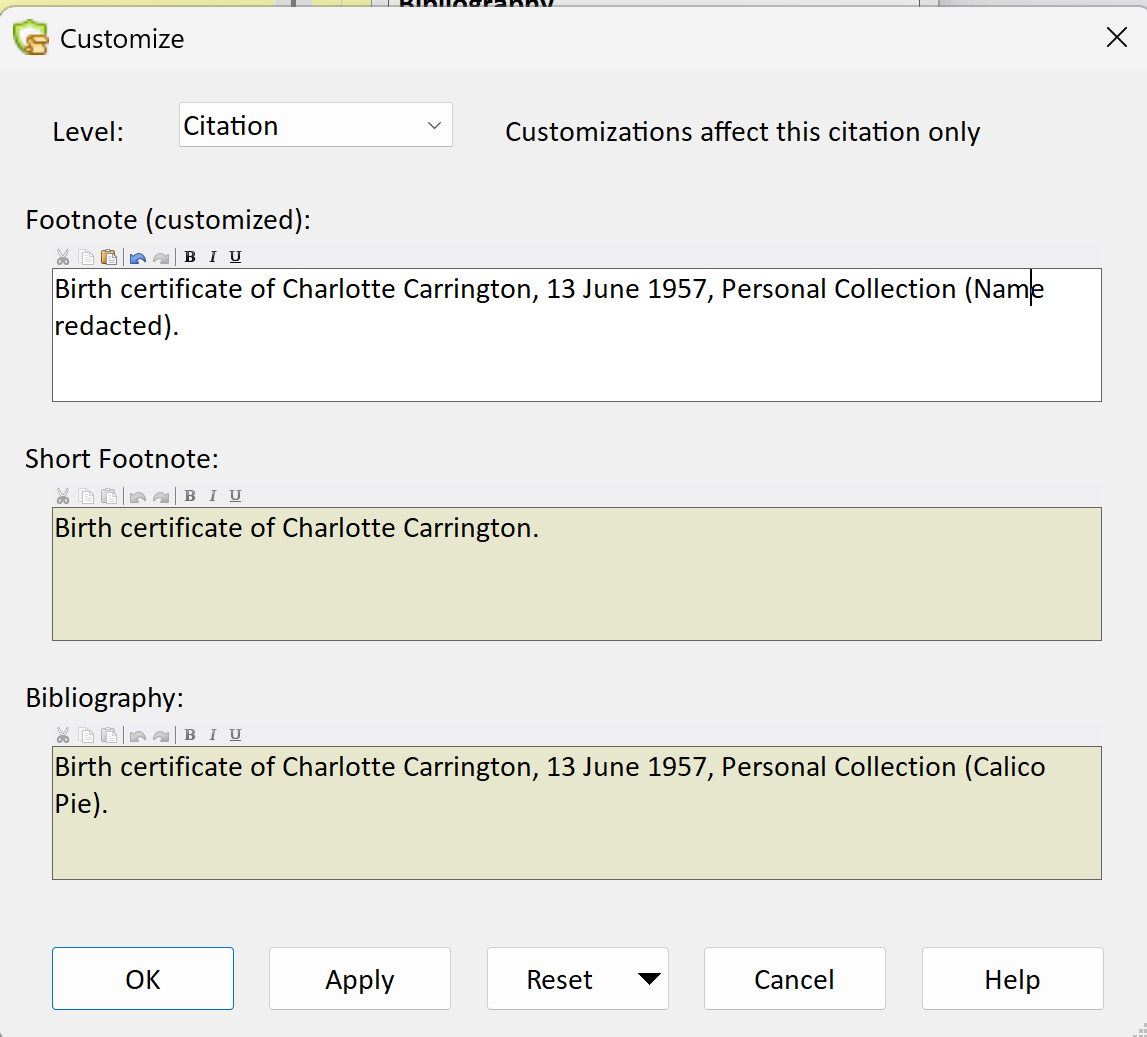
- Customising citations. A Customize link at the bottom of the Citation Window’s side panel lets you override the footnote, short footnote or bibliography entry for a single citation (either the finished text, or the format with its
{Field}codes), or the format for a single source. Uncustomised fields have a brown background, customised ones white, and there is a Reset button. Previously the only placeAccording to GEDCOM, a Place should hold "The jurisdictional name of the place where the event took place…" to change these was the Source Template itself, which changed every source using it. See Customize Citation. - Bibliographies. The Bibliography section of a report or book is now built from the bibliography entries of the citations it contains, and identical entries are merged. So a lumper can give one source several bibliography entries by customising its citations, and a splitter can let many sources share one. A customised bibliography entry can be blank, which drops it from the report.
- Smart Folders. The Records WindowThe Records Window provides a comprehensive view of all the information stored within a Family Historian project. and every record selector can show sources and citations in Smart Folders, grouped by template category with the template’s fields as columns. The standard folder sets keep themselves up to dateWhen an Event happened, or an Attrribute was true. as templates change, and the Source & Citation Wizard in Manage Folder Sets can build custom ones from your own templates. This is the feature most likely to change how you work: it lets a lumper browse a single censusCensus records are national collections of population statistics. They usually record details about members of a household on a particular date, and are typically collected every ten years. source as if it were split by year and district, and a splitter see hundreds of certificates as one collection, without touching the data.
- Source Templates. The Source Template Definition Compare dialog has an Adjust Field Order button to bring a project’s Source Template record into line with the definition, or the other way round. See Adding, Customising and Sharing Source Templates.
- Automatic Source CitationsAutomatic Source Citation is a very powerful tool to ensure you remember to cite Sources for all your conclusions. now apply however you enter data, including copying records or fields from the new FamilySearch Window.
- Finding citations. There is a new Citation queryQuerying is a very powerful feature that allows you to specify and save criteria for identifying a set of records of a given record type. type, and Record Links on the right-click menu of any record shows everything that links to it, which for a Source means its citations. See Finding Records Linked to a Source.
- Export. The Export GEDCOMGEDCOM, an acronym for GEnealogical Data COMmunication, is a specification for exchanging genealogical data between different genealogy software. It is a file format that most genealogical programs and online trees recognise. dialog has a Destination field and a Non-generic Source-handling option that copies footnote text into standard GEDCOM fields so that templated and free form citations survive the journey to other programs. See Exporting Templated Sources.
The Citation Window itself is little changed; the header area above the NotesFamily Historian version 6 and below supports two types of Notes: Local notes (associated with a single person, record, or fact); and Note Records (sometimes called Shared Notes), that can be linked to multiple records and/or facts. Version 7 introduced, Text from SourceBoth Source records and Citations have a Text From Source field intended to hold transcripts of source documents. and MediaWhen you add a picture, video, sound recording, document file etc into a Family Historian project, a Media record is created to represent that media item within the project; the Media record includes a link to the actual Media file. tabs is smaller. Any customisations you made to the Source Property BoxThe Property Box is the primary window for data entry and for viewing details of stored records. It is used with records of all types. and Citation Window in version 7 are carried across when you install version 8.
Do I Need to Do Anything?
- Open the Records Window, choose Sources and look at the Smart Folders pane. If you use templated sources this alone may be reason enough to have upgraded.
- Next time a footnote comes out not quite as you’d like for one particular citation, use Customize rather than editing the template.
- If you have a handful of awkward sources that never fitted a template and were living uncomfortably as generic sourcesFamily Historian 7 introduced the concept of 'Templated Sources' and renamed Version 6 (totally Gedcom compliant) sources as 'Generic Sources'. , consider making them Free Form.