There are times when a QueryQuerying is a very powerful feature that allows you to specify and save criteria for identifying a set of records of a given record type. is overkill — you simply want, for example, to locate a single individual in your data, or to find all occurrences of a particular phrase, or to replace instances of a word. ƒh provides simple searching and filtering capability to let you do this.
Version 5
Searching
The Find Record dialog allows you to search for text you specify. It is accessed via:
- Edit > Find Record
- or the Find button on the main toolbar


You can choose the record type to search (or All Record Types) and whether to search in Names, Titles, NotesFamily Historian version 6 and below supports two types of Notes: Local notes (associated with a single person, record, or fact); and Note Records (sometimes called Shared Notes), that can be linked to multiple records and/or facts. Version 7 introduced or All Text Fields; Use Find First to move to the first record found and then Find Next to move to each subsequent record in turn. Getting the Most from Family Historian V5 has more on this feature (Chapter 7, page 73).
Quick Search
In the Individual Record Window, you can enter all or part of an Individual’s name in the Name field at the top of the window to find the first record that contains the relevant text. Press F3 to step through other matches.
Version 6
Find, and Find and Replace
The Find Record dialog allows you to search for text you specify. It is accessed via
- Edit > Find…
- or the Find button on the main toolbar
In Version 6, you have a wider choice of where to search, and can see all the search results in a list or display then in a Results window (similar to the Results Window in a Query).
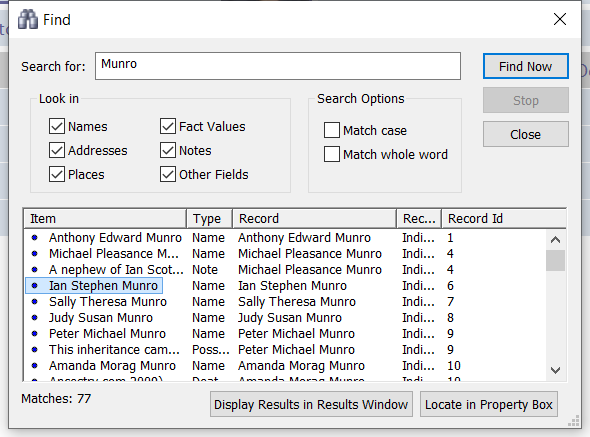
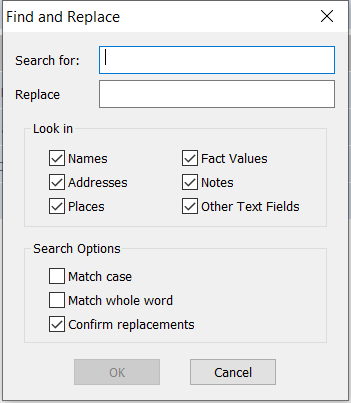
You also have a Find and Replace command (Edit > Find and Replace…).
Filters
From What’s New in FH6: Filters at the top of record lists make it much quicker and easier to find the record you want. For example, you can filter on surname or given name, or parts of either or both, when viewing lists of Individual recordsEvery person in your tree will have a single Individual Record, which holds all the information about that individual that you have entered. You can view and edit Individual records in the Property Box Dialogue.. Similar filtering is available for other record types, with options that are appropriate for each record type.
Alternatively (or additionally) if you click on a record list and type the first few characters of the record title (e.g. an Individual’s name), the first matching record will be selected.
See more about using Record Lists at The Records Window
Versions 7 and 8
Find, and Find and Replace
Edit > Find… (or the Find button) opens a floating Find dialog, so you can leave it open while you work through the matches in the Property BoxThe Property Box is the primary window for data entry and for viewing details of stored records. It is used with records of all types. . Tick where to look: Names, Addresses"The address structure should be formed as it would appear on a mailing label…", according to GEDCOM; however, this is capable of a number of interpretations, and Address and Place are best considered together., PlacesAccording to GEDCOM, a Place should hold "The jurisdictional name of the place where the event took place…" , FactFacts are one of the key concepts at the heart of Family Historian; they are how you record the things that happened to, or described, each ancestor (Individual). Values, Notes and Other Fields, with Match case and Match whole word. Source TemplateFamily Historian Version 7 introduced the ability to define sources using 'Source Templates' to aid precision and consistency in entering source-identifying information. records are skipped unless you tick Extended Search. Results can be listed in the dialog or sent to a Results window. See Find Dialog. Edit > Find and Replace… is unchanged.
Filters in the Records Window
In Version 8 the filter boxes above each record list match text anywhere in a field, so “unr” finds Munro. To match only the start, type ^ first, or click Options at the top of the Records WindowThe Records Window provides a comprehensive view of all the information stored within a Family Historian project. and tick Always Match on Text Start. They also gain wildcards: * matches any text, ? any single character, and ^ at the end of the filter anchors it to the end of the field. Typing the first few characters of a record title still jumps to the first match, and columns now sort one way on a click and the other way on a second click.
Smart Folders (Version 8)
For finding by category rather than by text (“who has an occupationAn occupation is defined in the GEDCOM standard as: ‘The kind of activity that an individual does for a job, profession, or principal activity’.?”, “which sourcesSource: "where information was found". This could be anything from an archive in a county records office, a book, or even a relative's recorded recollection. Citing your Sources helps to show how you reached a particular conclusion about an Individual. use this template?”) Version 8’s Smart Folders are often quicker than either a search or a query. See An Overview of Smart Folders.
Search and Replace Plugin
The Search and Replace pluginPlugins are small programs that allow new features to be added without upgrading Family Historian itself; some plugins are written by Calico Pie and others are written by users. offers a comprehensive set of options for searching and replacing text in ƒh versions 5 and above, including Version 8.