Introduction
Every computer user needs a strategy for making backup copies of their precious data. Modern PCs are a lot more reliable than they used to be, but can still fail without warning. In addition, the user could make a mistake that corrupts their files, or the PC gets damaged or stolen.
A file that is not backed up is a file that you are happy to lose.
This overview of backup options considers options within ƒh, and gives pointers for more experienced PC users for incorporating ƒh into a general backup strategy.
What needs to be backed up?
See Understanding the Scope of Features for a full description of where ƒh saves its data. A comprehensive backup needs to save all of these data, covering both your tree and program settings.
Options within Family Historian
These options give comprehensive coverage of ƒh data and customisations but do not copy any other files. They are most appropriate for less experienced PC users, as they are easy to set up and use and do not require detailed knowledge of PC filing systems.
A limitation of these methods is that they do not copy any other user data, so need to be part of an overall strategy to protect your user data, not your sole backup mechanism.
User data
ƒh provides three different data backups, with increasing scope, ranging from just the GEDCOMGEDCOM, an acronym for GEnealogical Data COMmunication, is a specification for exchanging genealogical data between different genealogy software. It is a file format that most genealogical programs and online trees recognise. file to all files in the relevant projectA Project is a Windows folder, created by Family Historian, which contains all your Family Tree information recorded in Family Historian. Normally located in the Documents\Family Historian Projects folder. folder. Note that mediaWhen you add a picture, video, sound recording, document file etc into a Family Historian project, a Media record is created to represent that media item within the project; the Media record includes a link to the actual Media file. files are copied only if they are within the project folder. Files held elsewhere that are linked to your project are not copied.Backup options are set from the Backup tab under either File > Backup/Restore > Backup Options… or Tools > Preferences in the ƒh menu, both of which bring up the selection form. The various options available are well described in the ƒh help for Version 6 and Version 7 and Version 8.
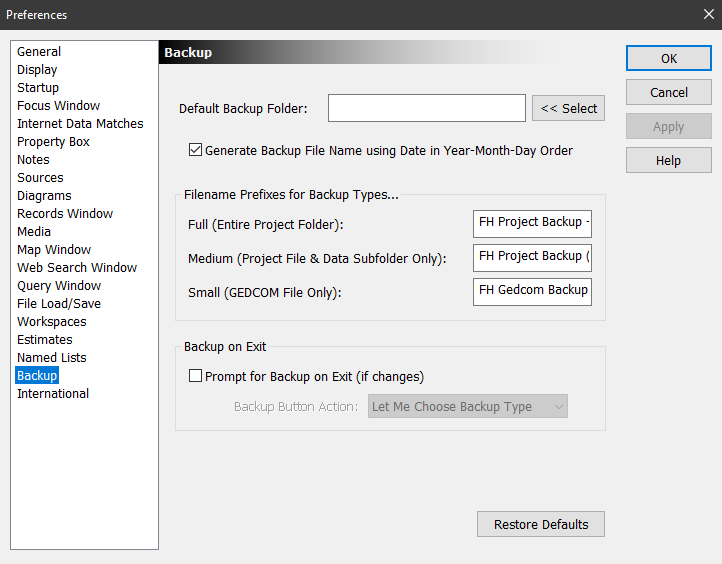
To run a backup, select File > Backup/Restore and the required backup type from the main ƒh menu. If the option is set (on by default), ƒh will also save a backup when closing the program (if the project has changed).
ƒh also takes automatic “snapshots” of the project GEDCOM file to facilitate restoring an older version in the eventEvents are things that happened to an Individual and Attributes are things that described them. of error or corruption. Optimisation of snapshot frequency is described in the program help for both Version 6 and Version 7 and Version 8.Backup file
The ƒh backup compresses your data into a single backup file. These backup files use the standard Compressed (zipped) Folder format. Since ƒh version 7 they are saved as Family Historian Backup (.fhbak) files, but earlier ƒh versions retain the default .zip extension. If necessary, advanced users can unpack them by using utilities such as 7-Zip and PkZip (but note that ƒh blocks opening .fhbak files by simply right-clicking and selecting Open, as this produces a message directing users to restore using ƒh).
Program settings
ƒh 8 can back up all its settings in one go: File > Backup/Restore > Backup/Restore Settings > Backup Settings writes a Family Historian Settings file covering preferences, customisations, factFacts are one of the key concepts at the heart of Family Historian; they are how you record the things that happened to, or described, each ancestor (Individual). types, custom queriesQuerying is a very powerful feature that allows you to specify and save criteria for identifying a set of records of a given record type., reports, diagrams, text schemes, source templatesFamily Historian Version 7 introduced the ability to define sources using 'Source Templates' to aid precision and consistency in entering source-identifying information. , smart folders, pluginsPlugins are small programs that allow new features to be added without upgrading Family Historian itself; some plugins are written by Calico Pie and others are written by users. and more. Restoring is done from the Project Window (More Tasks > Backup/Restore Settings > Restore Settings) with the project closed; custom items that already exist under the same name are skipped, and a settings file cannot be restored into an older version of the program than made it. See Backup/Restore Settings in the FH8 help. ƒh 7 and earlier have no equivalent: many individual custom features can be saved or exported one at a time, but the program cannot save all customisations and settings together in the way it does user project data. The easiest option there is to download either the Backup and Restore Family Historian Settings plugin or the new Backup and Restore Family Historian Settings via Windows plugin. Guidance on how to use the plugins is given in their help documentation. In ƒh 8 the plugins are optional. If you do use one, you need the original plugin from version 3.8, or the Windows plugin from version 3.0 (at the time of writing still on the FHUGThe Family Historian User Group is a group of user with wide-ranging experience, from newcomers to very experienced users, all of whom are very willing to shared their knowledge about the programme. Forums rather than in the Plugin StorePublished plugins can be downloaded from the Family Historian Plugin Store.). The built-in backup writes a single .fhstgs file, an ordinary zip file holding the two settings folders and the two Registry keys, and it includes any changes you have made to the standard diagrams and reports. The Backup and Restore Family Historian Settings via Windows plugin works with ƒh 8 from version 3.0. Older versions still save the file-based customisations (plugins, queries, diagrams and so on) but miss some preferences, because ƒh 8 keeps them under a different Registry key. It isn’t yet known whether the original Backup and Restore Family Historian Settings plugin has been updated for ƒh 8, so check its Plugin Store page before relying on it.Each method has its advantages. The built-in backup is easy to make and gives you one file, but the restore command is tucked away in the Project Window. The Windows plugin’s restore is simpler (in its author’s opinion), it is easier to pull a single file out of its backup, and advanced users can run it as an automated job without opening ƒh.
The plugins can’t move settings from ƒh7 to ƒh8. Several settings files, queries among them, have changed format, so a backup made in ƒh7 restores only into ƒh7. You don’t need them for the upgrade anyway, because the ƒh8 installer copies your settings across.
Why two plugins?
The original Backup and Restore Family Historian Settings plugin has been available since the days of ƒh5, but it is becoming increasingly more complex to fully encompass the variability in different languages and other national settings while still supporting all versions of ƒh.
All ƒh settings are saved either as files in the Windows ProgramData or AppData folders (for system-level and user-level settings, respectively), or in one of two Registry keys. As such, they can all be copied directly from Windows itself, so if you know where the files are and the identity of the Registry keys, you don’t need either plugin to perform a complete backup or restore.
The new Backup and Restore Family Historian Settings via Windows plugin, released in May 2022, simply compiles these backup commands for you from the configuration entered in its menu, then hands over to Windows to do the actual copying.
The new plugin has a number of advantages over its predecessor:
- Simpler menu selections, with full support for ƒh7 custom fonts and zoom with no separate configuration required, while still supporting ƒh6 and ƒh5.
- Faster backup, particularly when updating an existing backup, as managing all copying within a plugin imposes a significant performance overhead.
- All copying is managed as a separate process outside ƒh, so runs in the background once started. You can therefore continue using ƒh immediately, rather than having to wait until the backup is complete (which can be some time when writing to a slow destination such as a USB2 memory stick).
- A fully automatic restore process, without having to close ƒh manually to complete the restore.
- Support for Windows 10/11 long path names, enabling more deeply nested backup locations or settings files (but note that ƒh 7 and earlier are 32-bit applications and cannot use long paths, so path lengths within them are still limited to about 250 characters).
- Tested extensively for use in MacOS and Linux (version 1.1 onwards).
- Creates templates for technically-minded users to develop advanced features such as automatic backups that run even when ƒh is not open.
The established plugin also has its benefits:
- Greater fine control over restoring individual settings files.
- Very familiar to existing users over many years use.
The Windows plugin can restore backups created by its predecessor, but the reverse is not true. However, users who are comfortable with manipulating Windows files directly using File Explorer can restore either backup (either full or in part) directly from Windows.
Ancestral Sources Backups
If you use Ancestral SourcesAncestral Sources is a utility written by Nick Walker, designed to be used in conjunction with Family Historian to allow faster, more convenient creation of Census, Birth, Baptism, Marriage, Death and Burial/Cremation records. , use its Tools > Backup/Restore A.S. Options to save/recover settings, and backup the three Ancestral SourcesSource: "where information was found". This could be anything from an archive in a county records office, a book, or even a relative's recorded recollection. Citing your Sources helps to show how you reached a particular conclusion about an Individual. folders specified in Tools > Options under AS Folders.
Where to save
Backups should be saved to a location that is separate from your PC to give maximum protection. While saving a second copy of your files to another folder on the PC is better than no backup at all, it is not secure against something happening to the PC (mechanical failure, theft, accidental damage, etc). The two most common options today are an external hard disk or “in the cloud”.
Simple USB sticks are cheap and are plenty big enough for family history projects, but are relatively slow to write to and not particularly robust. While USB hard disks are significantly more expensive, they are much faster (particularly USB3), more robust, and have much bigger capacity. They are the better option if you can afford it.
An alternative is to subscribe to an external data storage service such as OneDrive, Dropbox, or Google Drive, which can be used for backup as well as synchronising Family Historian between multiple PCs. All of these services provide a limited free allowance, but charge for larger capacities. If you are happy to trust the provider to manage your data, they are a reliable and convenient option.
Integrating Family Historian into a general backup strategy
The more experienced PC user will already have a system for backing up their files, so may prefer to integrate ƒh with this rather than using the dedicated ƒh backup. Understanding the Scope of Features gives an overview of the locations to the copied. Backing up ƒh settings is simply a matter of copying the relevant ProgramData and AppData folders, plus the two Registry keys that ƒh users for settings (extracted to file with the Windows reg command if necessary).
A general backup strategy of this type is independent of ƒh, so you can use whichever backup tool you prefer. Many options are available, from simple file copying to sophisticated applications that manage automated backups or real-time syncing. Windows 8.1 and Windows 10 provide a File History backup option that automatically saves old versions of files when they are overwritten (similar to the inbuilt Snapshot feature in ƒh, but of much wider applicability). This can be a useful option, particularly if the old copies are saved on an external or network drive, but note that it only protects files in defined locations, not all files. File History is available in Windows Settings > Backup.
Restoring data
A backup is only useful if it can be restored when required. You need to know where your backup files are and how to access them.
The methods described here are equally applicable for restoring ƒh to its original location (say after upgrading a hard disk) or to a different location, PC, or user name.
A backup (both user data and settings) should only be restored back into the same high level version of ƒh that it was created from (i.e. Version 6 into Version 6, Version 7 into Version 7 and Version 8 into Version 8). The sub-version restored into can be equivalent or newer than the version backed up from, but should not be older (e.g. Version 7.0.7 into Version 7.0.8 is ok, but the other way around may give unpredictable results). Calico PieCalico Pie Limited is a UK software house, and the publishers of Family Historian. only make the latest sub-version available, so older ones are not available unless you have saved the original installation file (which is recommended best practice, in case you need to downgrade a version for any reason).
Start the restore process by installing the appropriate version of the application, and in the case of Version 7, ensure that it activates correctly. Version 8 is licensed through a Family Historian account rather than a licence key: sign in with the account the licence is attached to.
If you have used the ƒh backup methods, select File > Backup/Restore > Restore Backup… to restore your user data. For program settings, in ƒh 8 use Project Window > More Tasks > Backup/Restore Settings > Restore Settings with your settings file; in earlier versions, or if you backed up with a plugin, reinstall the Backup and Restore Family Historian Settings plugin (or its Windows counterpart) and follow its help guidance for how to restore program settings.
If you have used your own backup method, close ƒh and use the method appropriate for your chosen method to restore user data, the ProgramData and AppData folders, and the two Registry keys. Note that the HKEY_LOCAL_MACHINE\SOFTWARE\WOW6432Node\Calico Pie\Family Historian\2.0\Preferences key contains specific file locations for the default project, along with project and backup folders. For ƒh 8, which is a 64-bit program, the folders use Family Historian 8 in placeAccording to GEDCOM, a Place should hold "The jurisdictional name of the place where the event took place…" of Family Historian and the keys sit outside WOW6432Node: HKEY_CURRENT_USER\SOFTWARE\Calico Pie\Family Historian 8 and HKEY_LOCAL_MACHINE\SOFTWARE\Calico Pie\Family Historian 8\2.0\Preferences. If these are different in the new installation, you can either edit the reg file (which is a plain text file), or leave it as it is and set the new values within ƒh after completing the restore.