Generic sourcesFamily Historian 7 introduced the concept of 'Templated Sources' and renamed Version 6 (totally Gedcom compliant) sources as 'Generic Sources'. are linked to repositories via a repositoryA repository is a place (physical or online) where collections of original source data are stored and maintained. field, whereas by default, templated sourcesFamily Historian Version 7 introduced the ability to define sources using 'Source Templates' to aid precision and consistency in entering source-identifying information. are linked to repositories via a template repository metafield.
If you’re only using generic sources, you don’t need to read any further.
If you’re only using templated sources, your data entry and presentation will be consistent. However:
- you will need to adjust queriesQuerying is a very powerful feature that allows you to specify and save criteria for identifying a set of records of a given record type. created before templated sources were introduced to use the template repository metafield instead of the generic repository field.
- you will need to configure the source record window to show the template repository metafield rather than the generic one, if you wish to show it.
- you will need to take care when exporting templated sources, to ensure that their non-standard GEDCOMGEDCOM, an acronym for GEnealogical Data COMmunication, is a specification for exchanging genealogical data between different genealogy software. It is a file format that most genealogical programs and online trees recognise. representation of the repository is correctly interpreted at the receiving end.
And if you are mixing generic and templated sources, in addition to the points noted above, the different handling of repositories can create complications when viewing the source record window, or querying sources, because there are two fields that could be relevant.
We don’t recommend mixing the two types of source, because of the potential inconsistencies of presentation, but if you choose to do so, it is possible to configure templated sources to use the generic repository field.
Actually, it’s already present for all templated sources, just not visible by default (as are all generic source fields).
There are also advantages in using the generic repository field for templated sources, even if you are not also using generic sources: it simplifies export to other programs and website (although it does not eliminate all the compatibility issues associated with templated sources); and it retains compatibility with older queries.
Warning: it will be a hard work to arrive at a consistent way of working with templated sources and the generic repository field if you have already created a lot of templated sources without it. It is best embarked upon as part of the process of deciding how to use templated sources, before you start creating any sources. It will also be much easier if you create your own source template definitions, either from scratch or by cloning definitions provided with FH (because the standard template definitions cannot be edited).
Note: Some source templates (e.g. in the Advanced collection) may have multiple Repository metafields. GEDCOM 5.5.1 supports multiple instances of the generic repository field, but that scenario isn’t addressed in detail here.
Please read the whole article before making any changes!
Steps In Outline
To swap from using template repository metafields to generic repository fields, you need to:
- Make the generic repository field visible for templated sources in:
- The source property boxThe Property Box is the primary window for data entry and for viewing details of stored records. It is used with records of all types.
- The citationA link between a source and a fact, documenting Where within the source you find information being "cited" to support the fact/conclusion. window
- The record window for sources
- If necessary, transfer any existing data from template repository metafields to the generic repository field (for all templated sources)
- Convert any standard templates to custom ones (as standard template definitions can’t be edited)
- Adjust all custom templates to use the generic repository field in display formats, and to remove the template repository metafield from all custom template definitions and records.
Make Generic Repository Field Visible
In the Property Box for a Source record:
- Go to Customise Property Box via the Cog Icon
- Choose the Main (template) tab
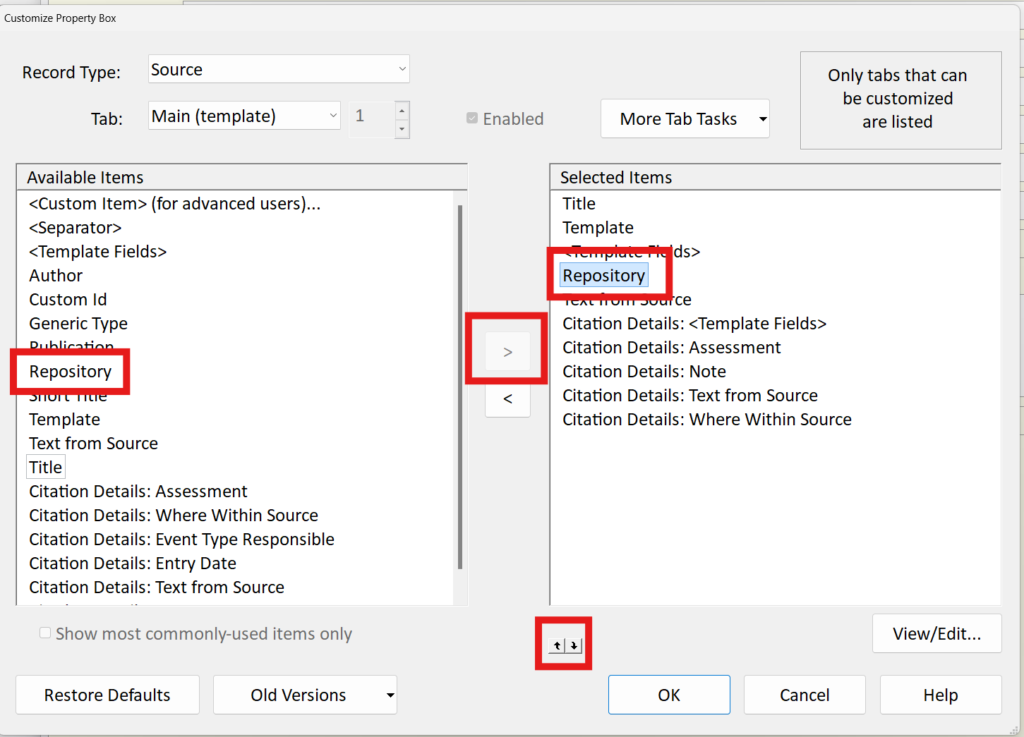
- Select the Repository item in the left hand pane (Available items), and use the right arrow in the centre to move it to the right hand pane, then use the up and down arrows to move it to the position you want, typically below the Template Fields.
- Click OK.
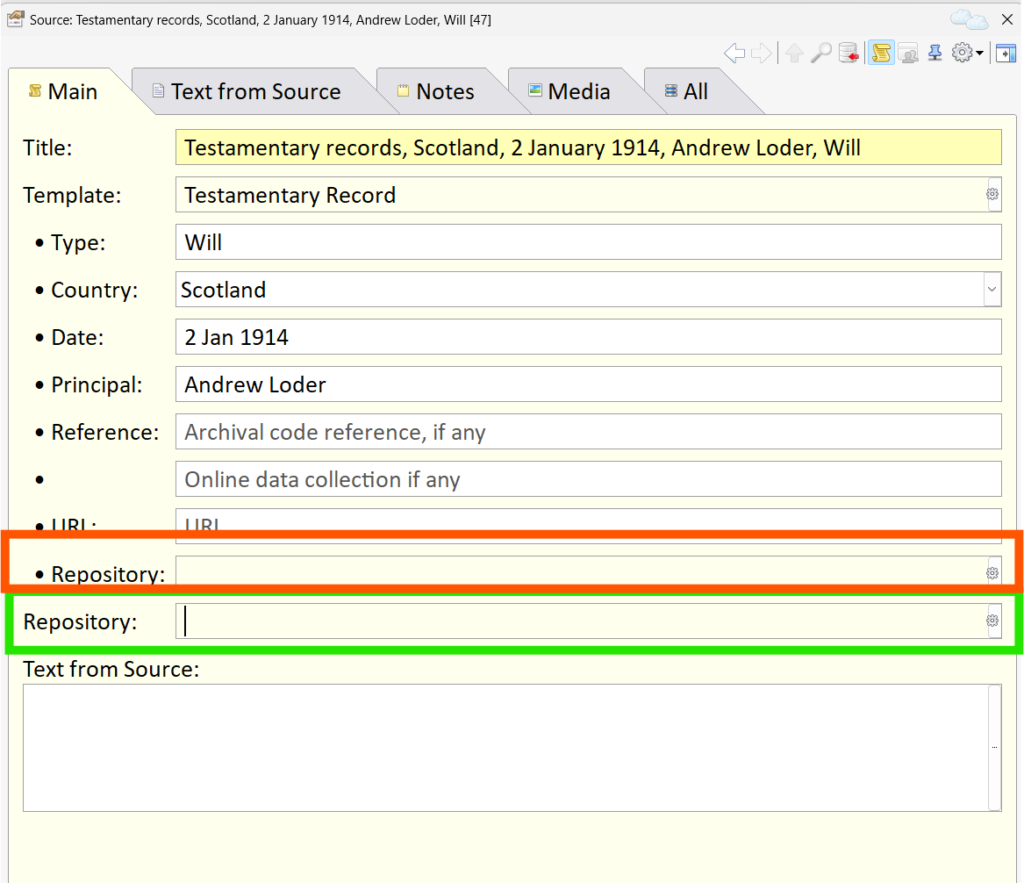
Your property box for a templated source will now show the generic repository field (highlighted in green ) and probably also a template repository metafield (highlighted in orange). You can tell the difference between the two because the template metafield is prefixed by a bullet and the generic field is not.
And if you now go to Prepare a Citation via the scroll item on the main toolbar, you will see that this change has been made in the Citation window as well.
Now go to the Source Record Window. Right-click anywhere on the column headers and choose Configure Columns.
Check if there is already a Repository column present. if it exists, use Edit to check that it refers to %SOUR.REPO[1]>% and change it it if doesn’t (for the template metafield it will be something like %SOUR.~RP-REPOSITORY>% where the element after ~ may vary if the Repository metafield has a different name.
If it doesn’t exist and you want to display the Repository, choose <Other> in the left hand pane, enter a name for the column (usually Repository) and click Insert Data Ref... In the dialog that appears, choose Repository (%SOUR.REPO[1]>%) and click OK. Then click Add, and position the column using the up and down arrows before finally clicking OK.

Transfer Repository Data
This only applies if you have already created some templated sources.
To transfer the repository data from templated repository metafields to the corresponding generic repository field, you need to open each Templated Source in turn and cut-and-paste the data between the two fields (from the template metafield prefixed with a bullet to the generic field which does not have a bullet.). It should be possible to automate it with a simple pluginPlugins are small programs that allow new features to be added without upgrading Family Historian itself; some plugins are written by Calico Pie and others are written by users., but there isn’t one publicly available.
Make sure you complete the data transfer before adjusting any templates, so that you don’t inadvertently lose data.
Convert Standard Templates to Custom Templates
The standard Source Template Definitions cannot be edited, so you must first clone all the standard templates you use or intend to use via Tools > Source Template Definitions, then Clone. Chose a meaningful name for the custom collection that will help you remember where they came from — e.g Custom Essentials For each template you create, use Add to ProjectA Project is a Windows folder, created by Family Historian, which contains all your Family Tree information recorded in Family Historian. Normally located in the Documents\Family Historian Projects folder. to make it available for use.
Next, you must edit any sources you’ve already created using the standard templates to use their custom equivalents.
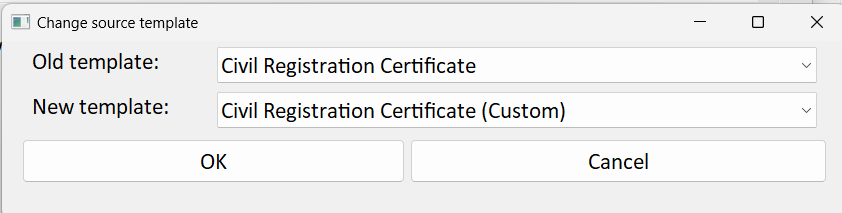
Start by downloading and installing the Change Source Template plugin from this forum thread. (To install it, open the downloaded file by double-clicking on it). Run the plugin for each of your new source templates in turn.
For each template, choose the old (standard template) and the new (custom template) and click OK.
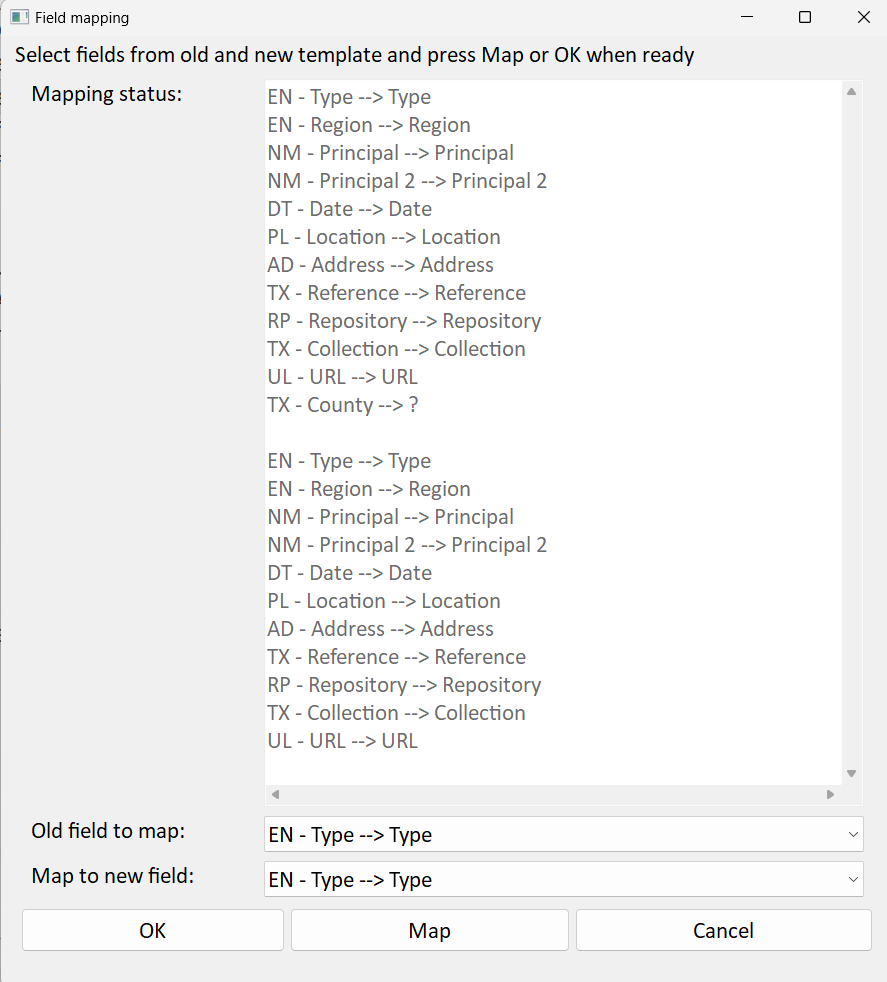
As you have not altered anything in the template after cloning it, the mappings will be correct, so press OK.
Select all the Source recordsSource: "where information was found". This could be anything from an archive in a county records office, a book, or even a relative's recorded recollection. Citing your Sources helps to show how you reached a particular conclusion about an Individual. based on the relevant template type, and press OK.
Once you’ve changed all your sources to use the new custom templates, you can delete the unused standard templates from your project via the Source Templates Records windowThe Records Window provides a comprehensive view of all the information stored within a Family Historian project.. Remember to check that they are not in use — i.e. the links count is zero — before deleting them. If they are in use, use View > Record Links to track down the sources and run the plugin again as necessary.
Adjust Custom Templates
For each template, you must adjust the source display formats (Title, Footnote, Bibliography etc.) to use the generic repository reference {%SOUR.REPO%} and not the template repository field {REPOSITORY} wherever it occurs.
It is unfortunately not possible to hide a single template field in the Source Property Box/Citation Window, so the template Repository field must then be removed.
You now have a set of custom templates that use the generic Repository field rather than a Repository metafield; and all your templated sources have been converted to use them.