Introduction
One of Family Historian’s strengths is its interactive Diagrams and Charts, which can be used in a number of ways:
- Browsing and exploring your tree visually
- Entering and editing data
- Navigating to an individual of interest
- Producing a Chart to share information with others
These possibilities as well as the differences between a Diagram and a Chart are explained fully at Working Diagrams and Charts.
The Diagram Window
Diagrams and charts are displayed in the The Diagram Window.
Key Information
Diagram Root
All Diagrams have a root. This is the person from which the diagram “spreads out”, so in the following Ancestor Diagram the root is Ian Robert Peabody as it his ancestors who are shown. In addition in the Diagram Options, the root box is shown in a different colour from other boxes.
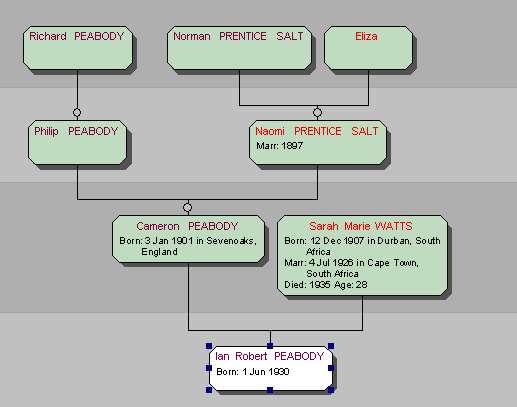
All diagrams can alternatively be centred on a couple rather than a single person. This is done by selecting two people who must be the spouses within a Family Record as explained by how to View Both Spouses’ Ancestors.
Standard and Custom Diagram Types
ƒh provides a number of core diagram types:
- Ancestor Diagram

- Descendant Diagram
- Ancestor and Descendant Diagram
- All Relatives Diagram
- Everyone Diagram
- Blank Diagram (completely blank to allow any combination of trees and boxes to be inserted).
- All Relatives + Indirect Relatives Diagram (Version 7 on), and Fan Chart and Pedigree Chart diagrams, which are built from shapes rather than trees.


In addition there are some pre-configured Standard diagrams based on one of the core types. Version 8 gives the standard diagrams a new look (rounded boxes with a soft glow, names coloured by sex) and, if you had customised the four core diagrams in Version 7, keeps your versions as custom diagram types with a “V7 – ” prefix; Charts > Choose Preferred Look for Standard Diagrams copies any diagram’s option set onto the standard six, so you can have the old look back with a couple of clicks. See Choose Preferred Look for Standard Diagrams.
You can use any of these core and standard diagram types ‘out of the box’ or you can configure them via the Diagram Options Dialog to have the appearance and content that meets your needs. If you’ve tailored them, you can save them for reuse with the same settings as a Custom Diagram Type using Diagram > Save Diagram As… > Custom Diagram Type and use them again (or delete them) from Charts > Custom Diagrams on the main toolbar (the same submenu is on the View menu).
Diagram Drag
One of Family Historian’s unique features is the ability to draw a tree interactively.
The following actions will work:
- Drag down from a person to add a child
- Drag left to add a spouse
- Drag up to add a parent
Notes:
- The drags will only work on the appropriate diagram type so it is recommended to always work on a All Relatives Diagram to prevent unexpected results. The simple example is you can not add Children to the Diagram RootAll Diagrams have a root. This is the person from which the diagram “spreads out”; in the standard diagram preferences the root box is shown in a different colour from other boxes. of an Ancestor Diagram.
- If you change the direction of the chart (e.g. from top-down to left-to-right) the direction of the drags changes accordingly.
Backing Up and Restoring Diagram Settings
ƒh7 and earlier store the settings associated with the core diagram types in the Windows registry, so backing them up is not simple. In ƒh8 any diagram type’s options can be saved and reused, box settings can be saved as presets and exported, and everything is included in File > Backup/Restore > Backup/Restore Settings. For earlier versions, follow the advice at Family Historian Copy and Migration Guide to back them up (and restore them in case of a PC failure) or if installing ƒh on a new PC.